/Lawcode%20Logo%20(White).svg)
To use the comparison view first click on Own products or Supplier products.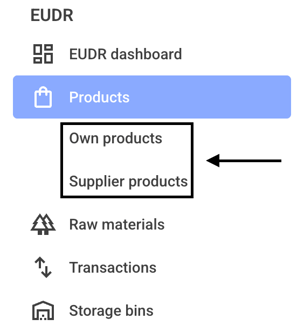
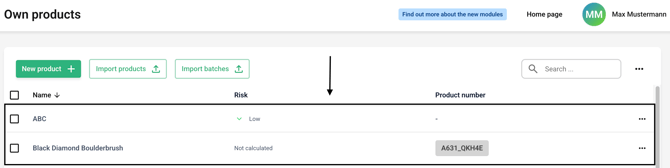
Now click on the line of the desired product.
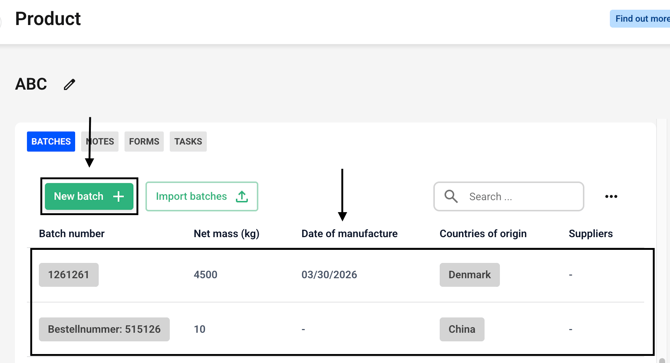
Create a new batch or select an existing batch.
Click on the Add new production site button or choose an existing production site.

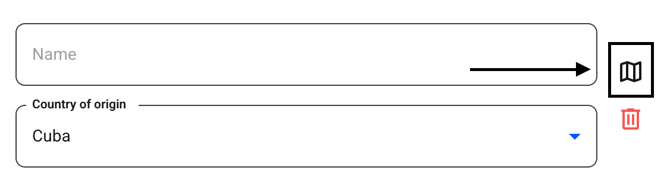
Now click on the small map symbol.
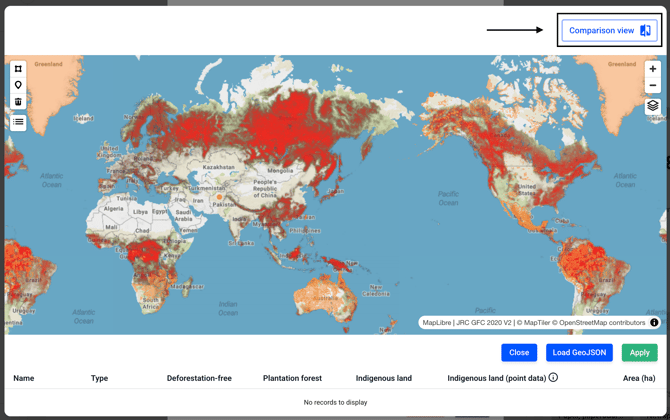
Click on the Comparison view in the upper right corner to activate it.
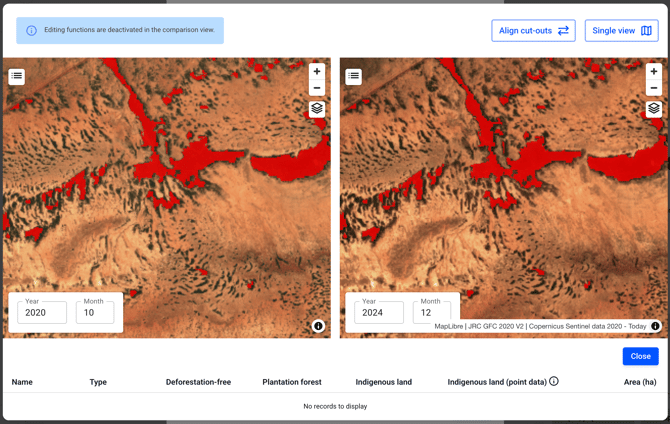
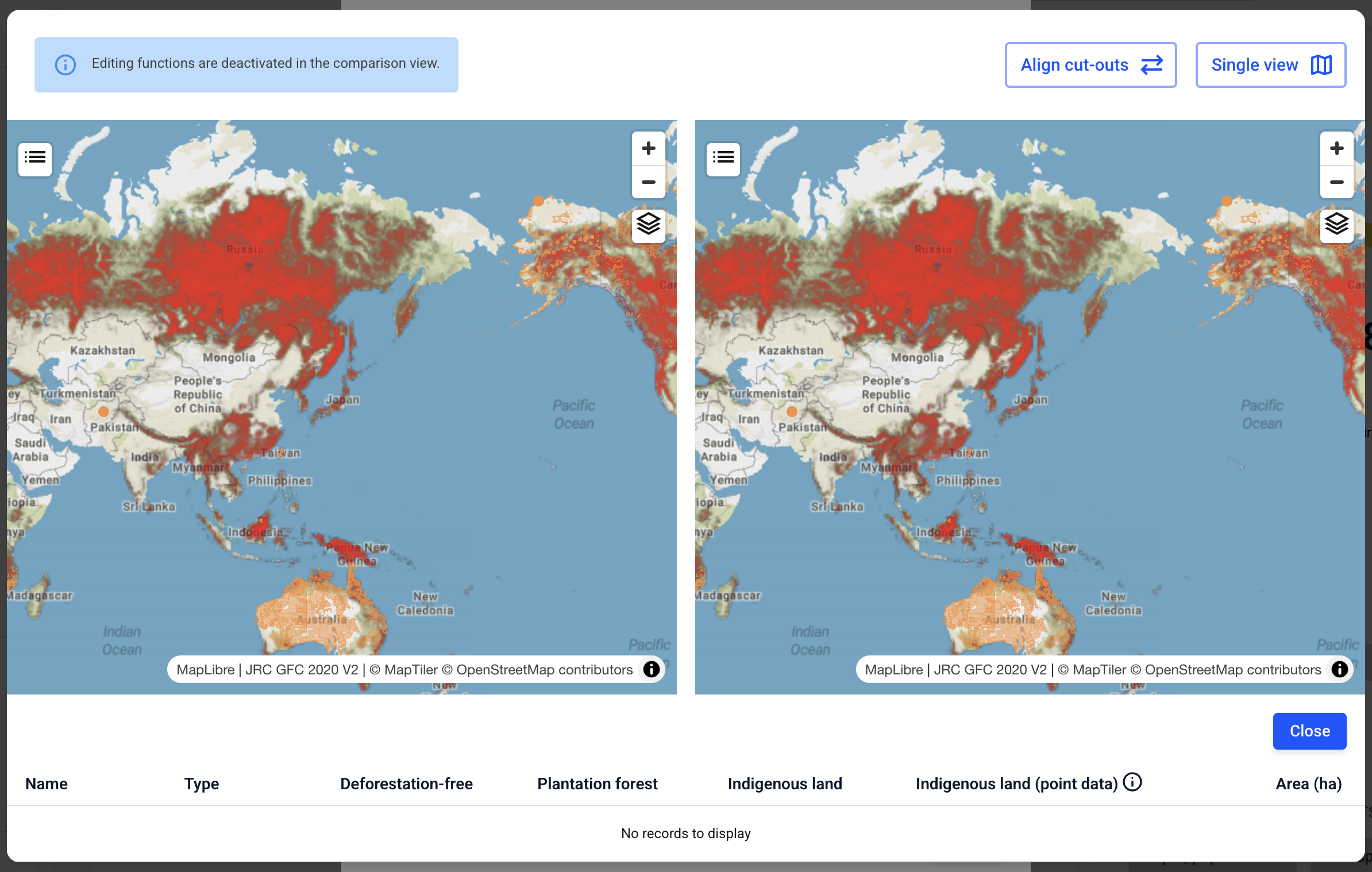
You will start in the following view.
First, set the map (to a single page) to the location of your choice.
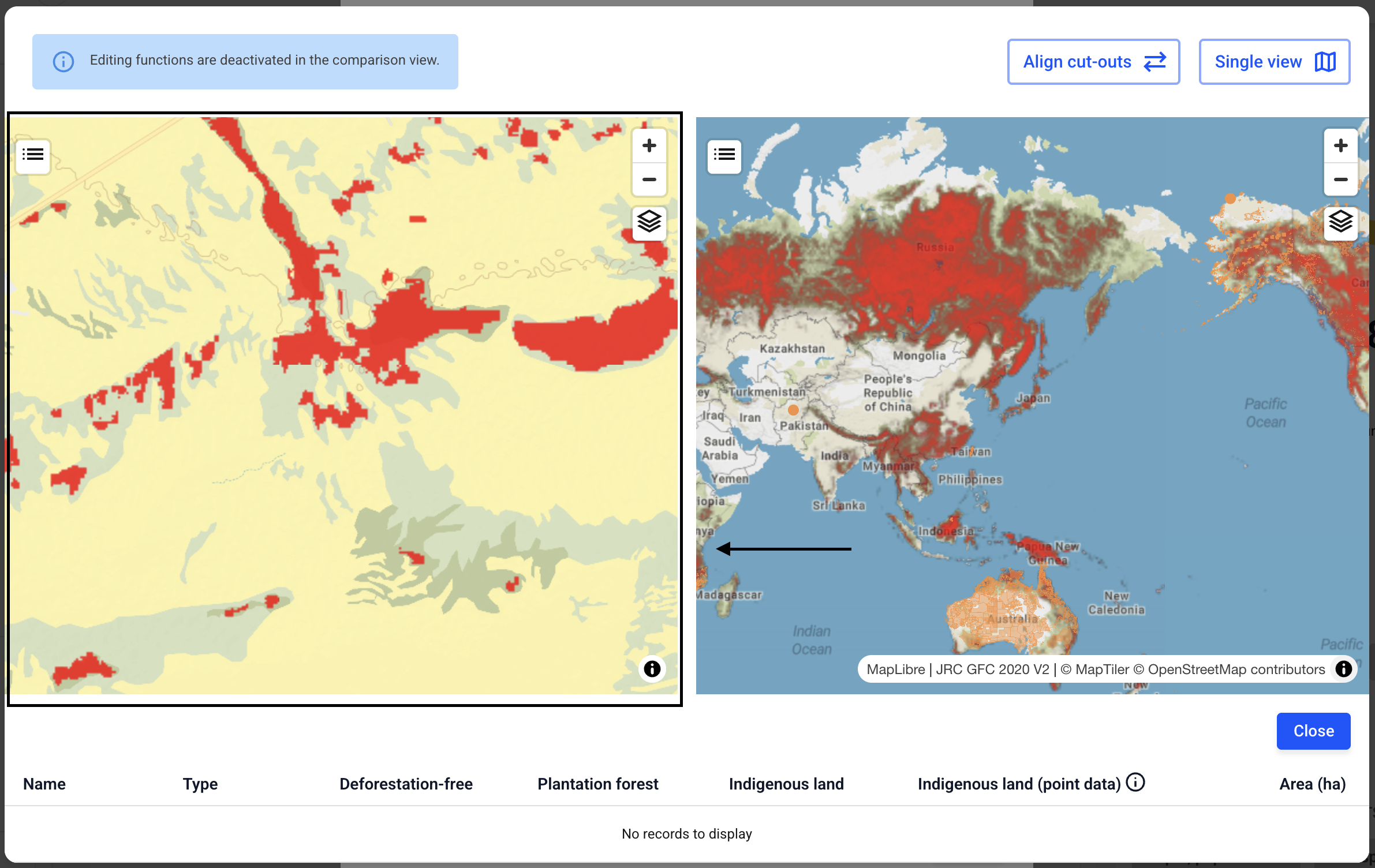
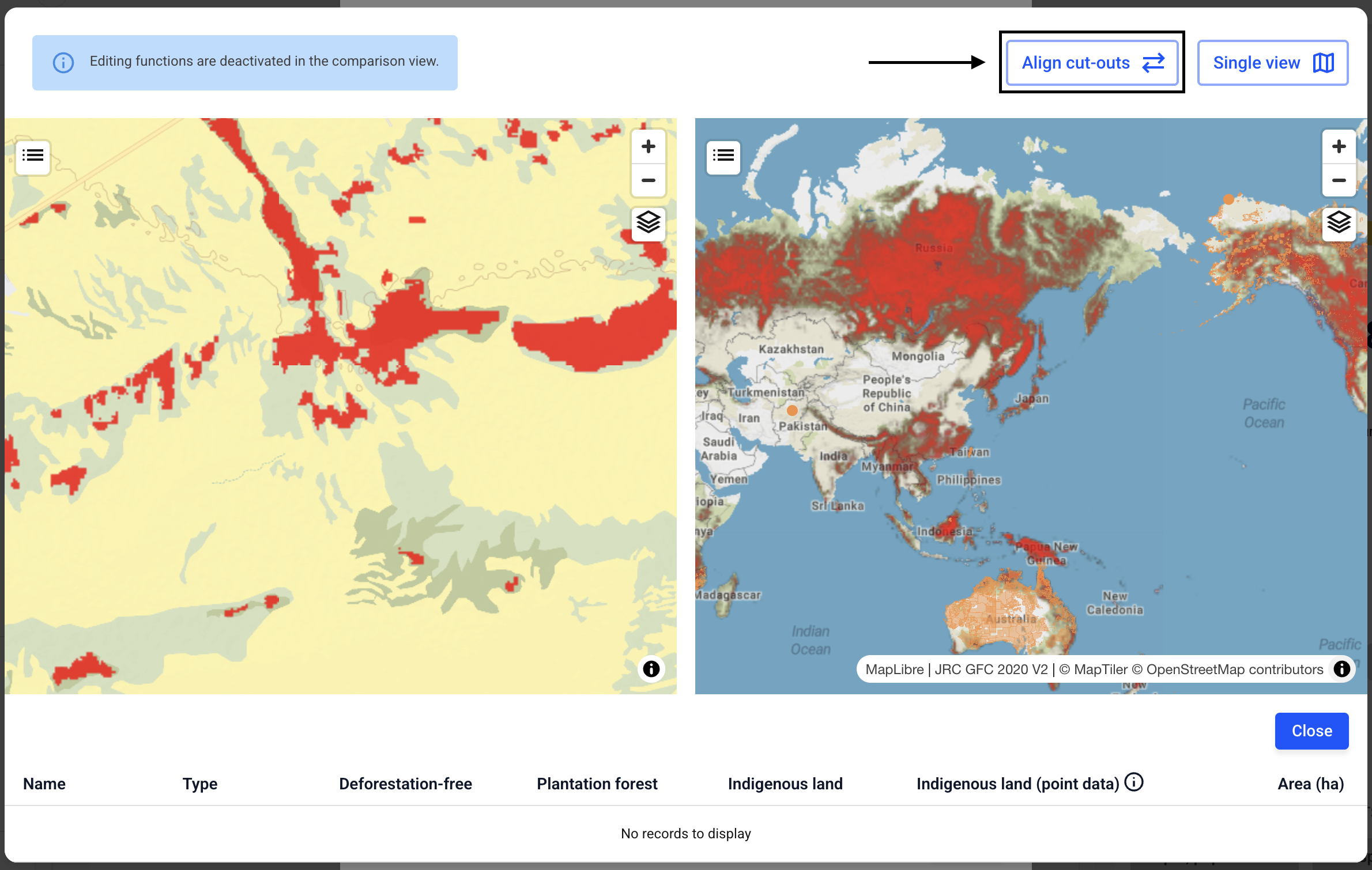
Click Align Cut-outs now to display the map data identically on both sides.
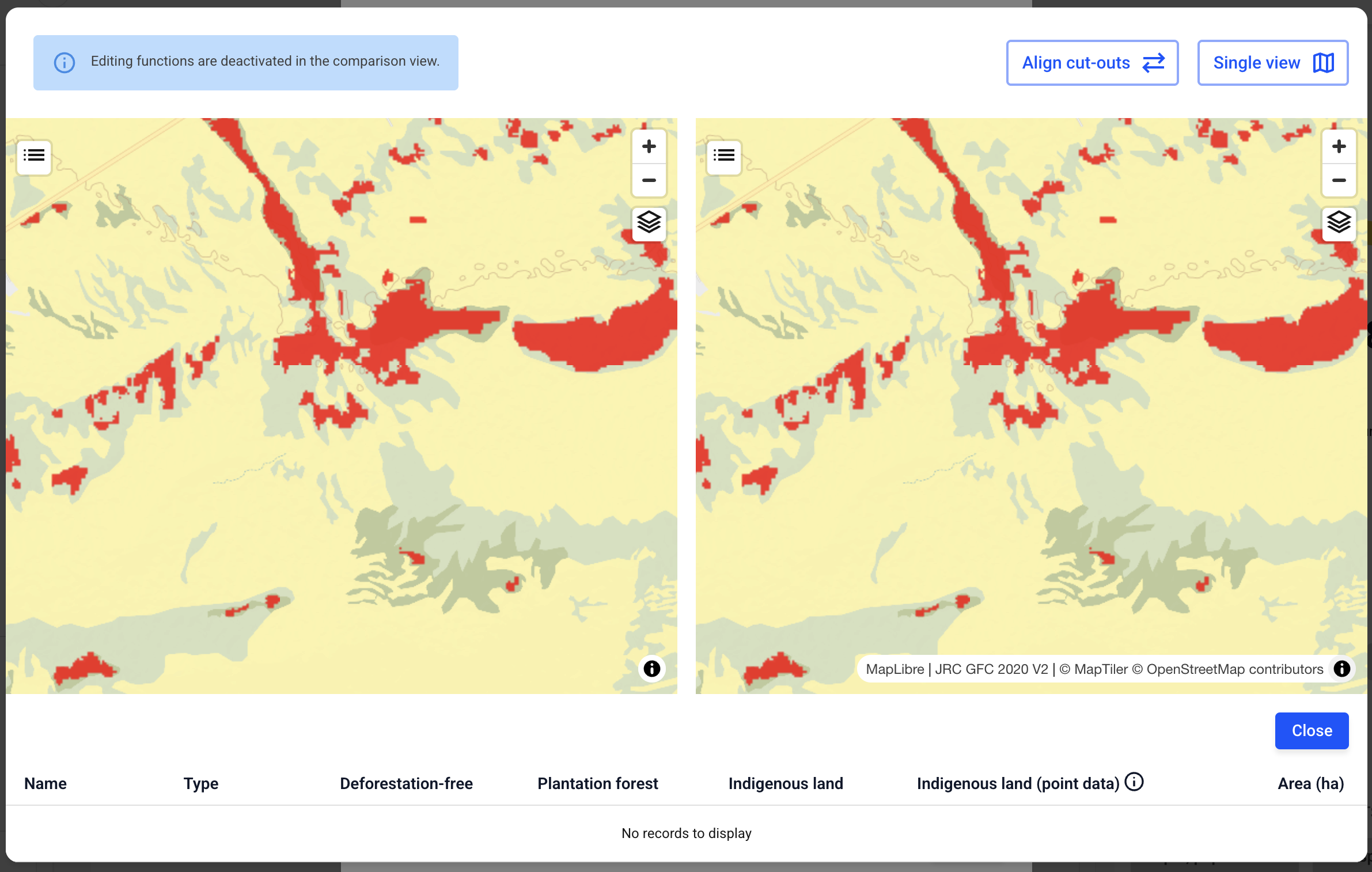
The map data is now identical.
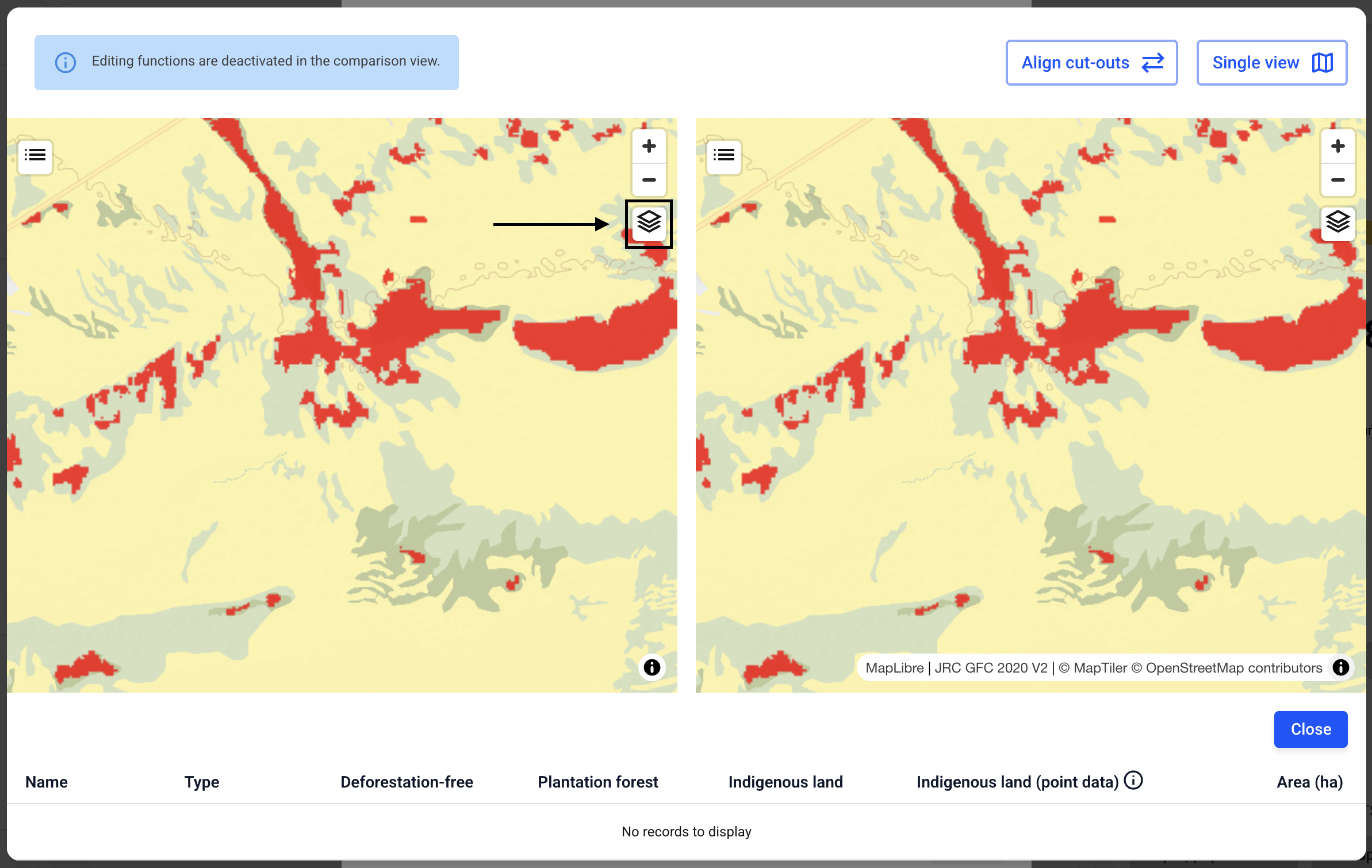
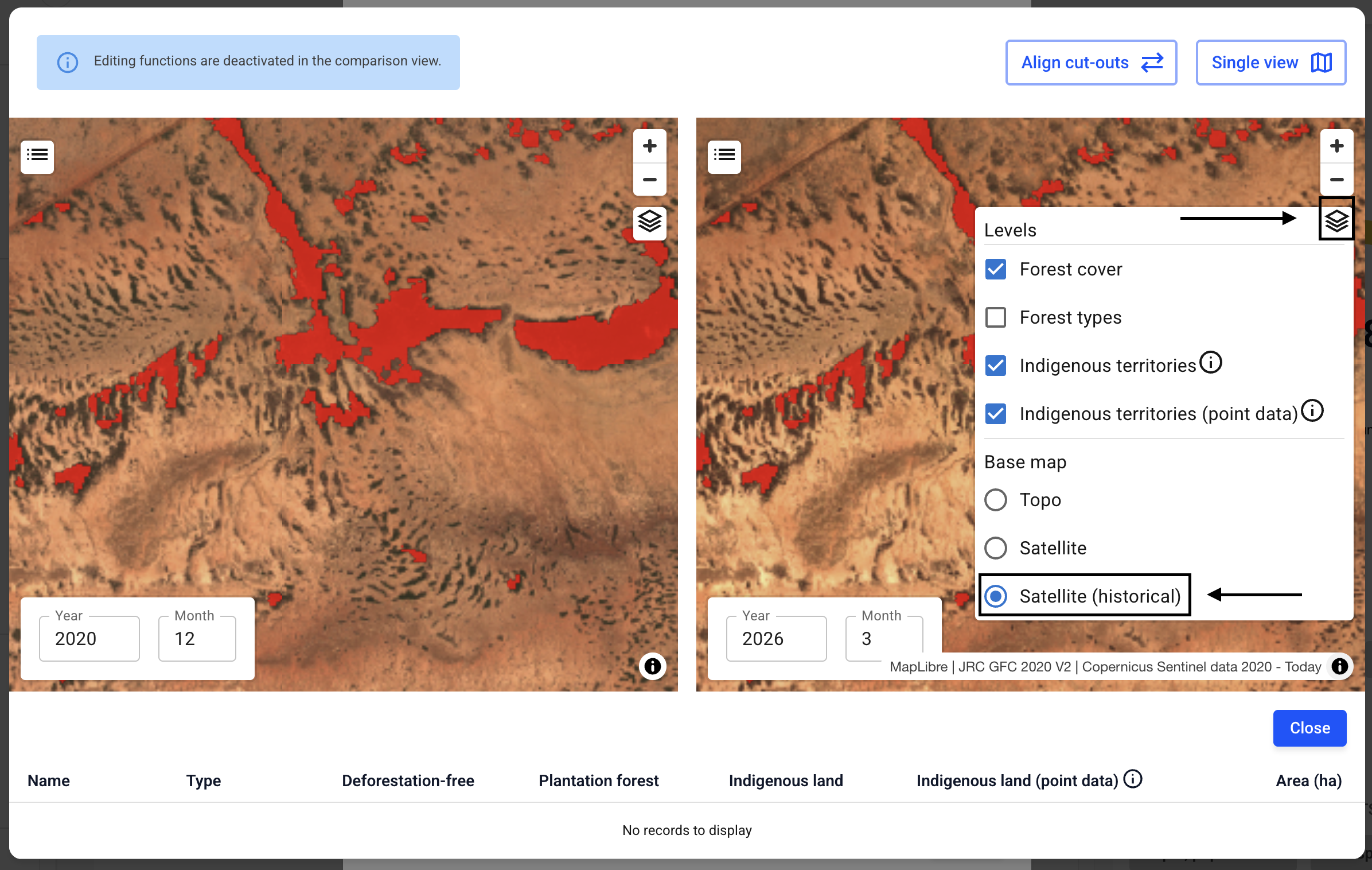
Click on the icon below on the left.
Now click the Satellite (historical) checkbox.
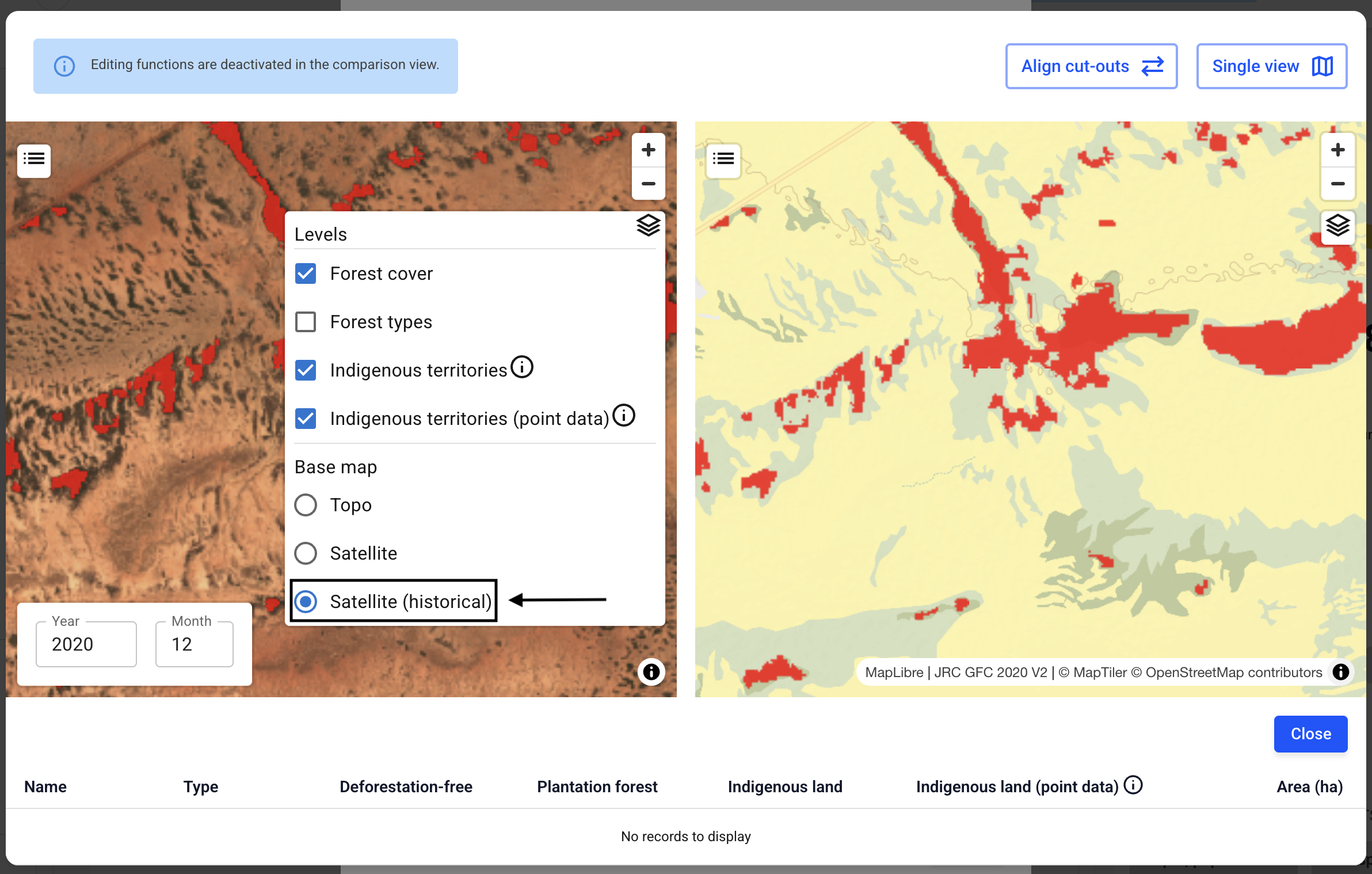
Repeat this on the right side as well. To close the newly opened menus, you need to click the icon one more time.
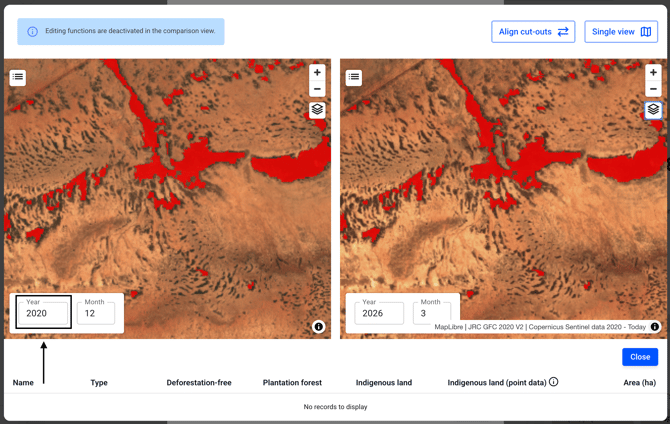
You can now set a time period for each page during which the corresponding images will be displayed. To do this, start by selecting the year. Click in the field and type in the year using your keyboard.
Now select a year and the month of your choice on the right-hand side.
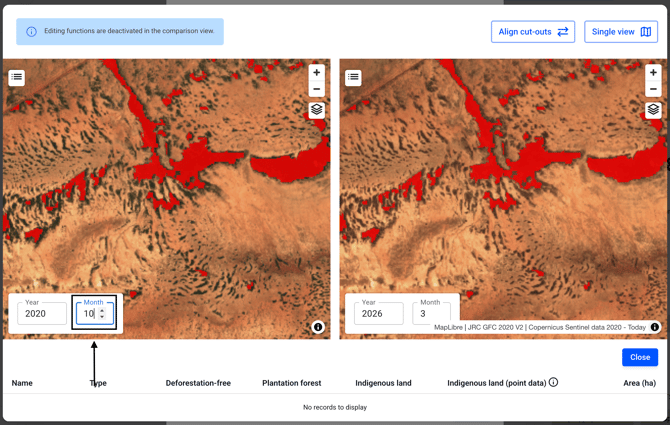
If anything has changed on the map during those periods, you can now see it.