/Lawcode%20Logo%20(White).svg)
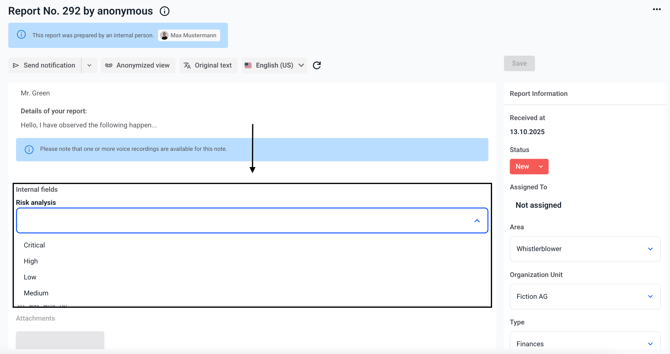
You have the option of expanding case processing according to your own requirements. Various fields can be added to the report. These are only visible to the editors.
Tip:
If you create the new field as a global field, you can even search for the information later within the dashboard. You can find a guide for this here.
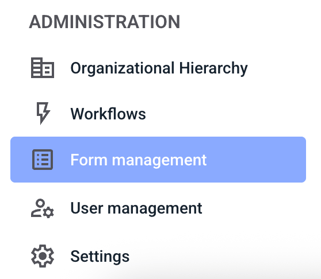
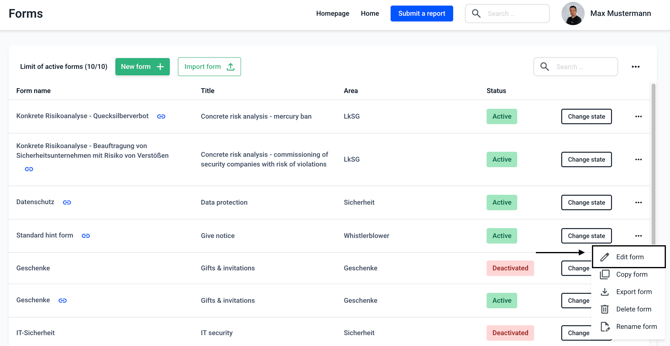
To do this, navigate to the Form management.
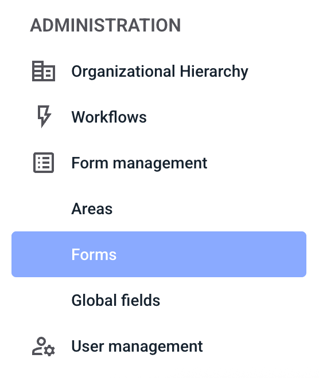
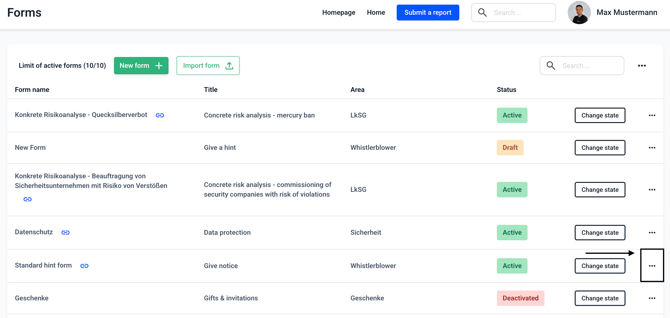
Click on Edit form.
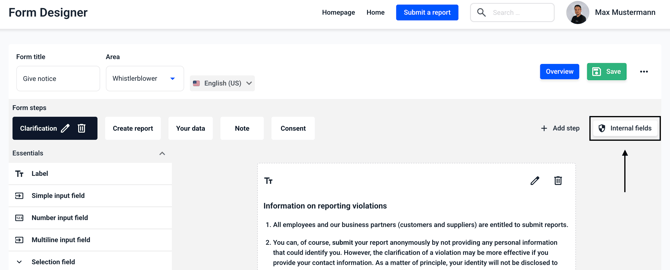
Click on internal fields.
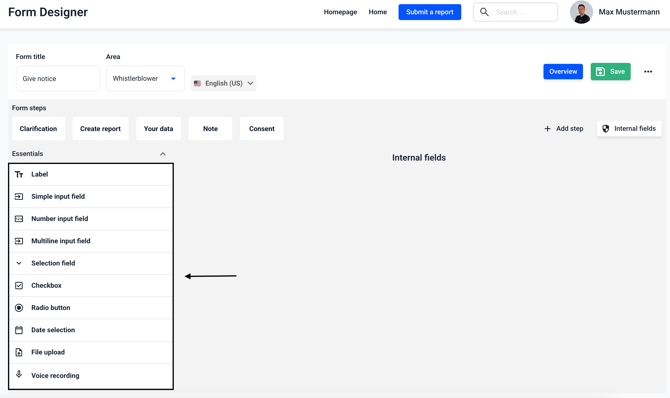
In the field selection, there are various fields that you can use as internal fields. Click on the corresponding field and drag it to the right into the form.
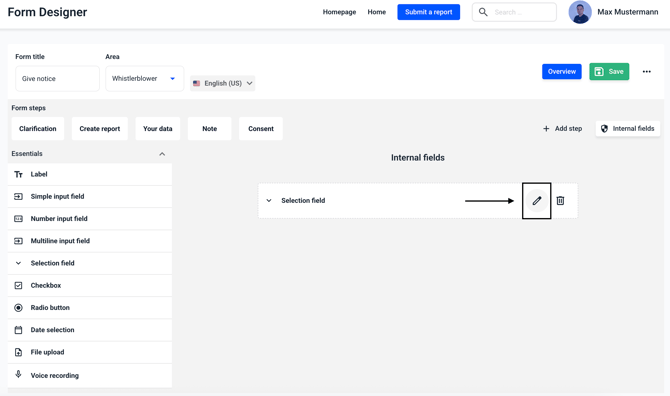
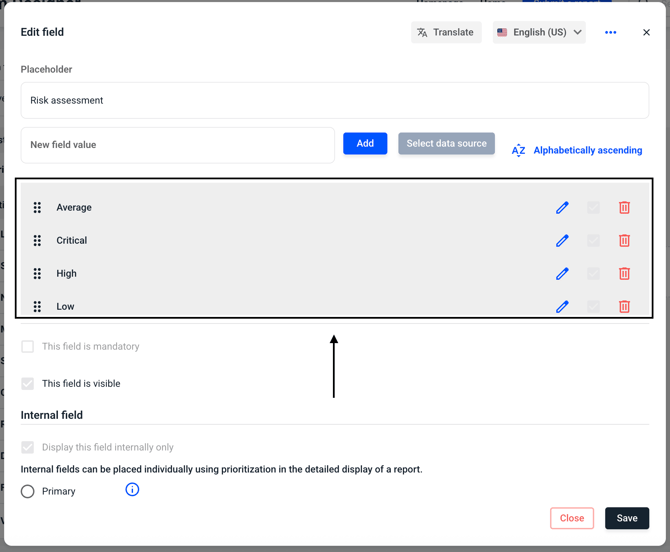
Click on the edit pencil icon in the selected field.
Edit the field accordingly and then click Save.
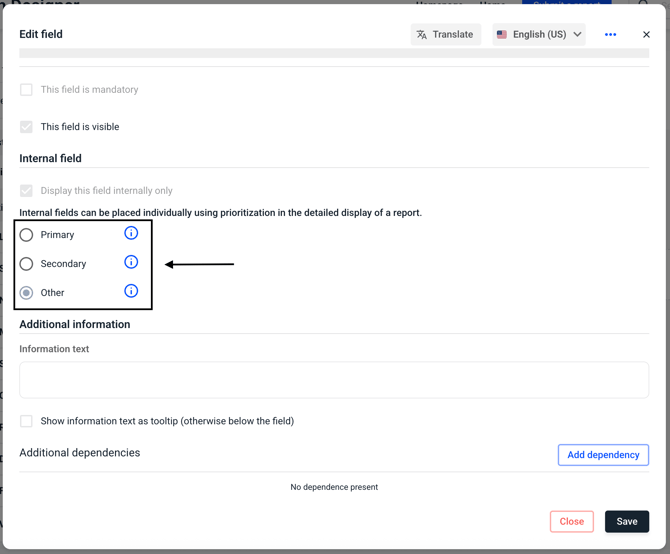
Select where you want to place the field on the report.
Primary fields are displayed directly below the report details of the reporting person.
Secondary fields are displayed to the right of the report details of the reporting person. Directly below the priority selection field. We recommend that you also store primary selection fields here.
Other fields are displayed in the detail view in the “Other” tab.
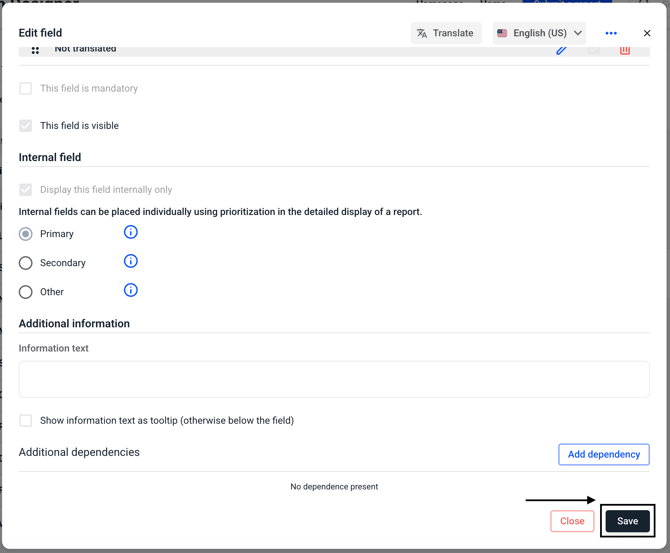
Save that field.
Save the form.
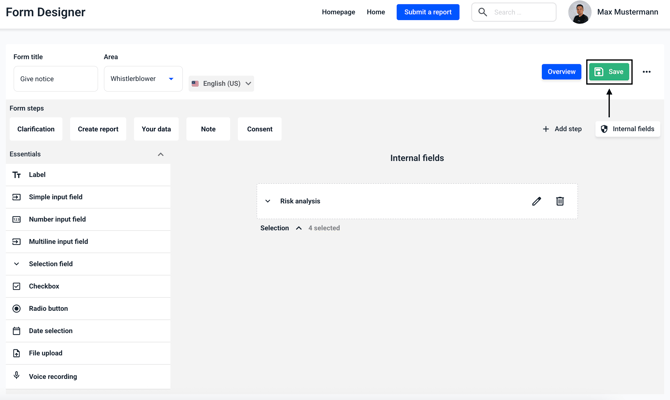
The field you created will now appear on every report submitted using this form.