/Lawcode%20Logo%20(White).svg)
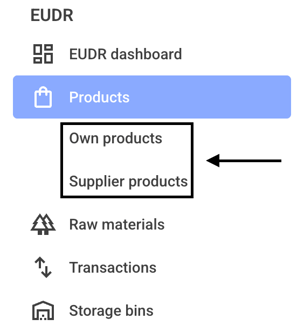
To add a note for a batch, first click on Own products or Supplier products.
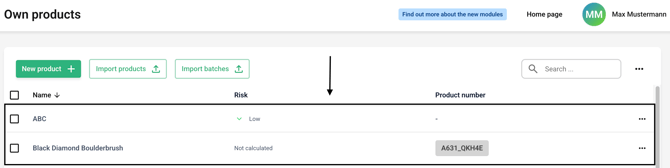
Now click on the line of the desired product.
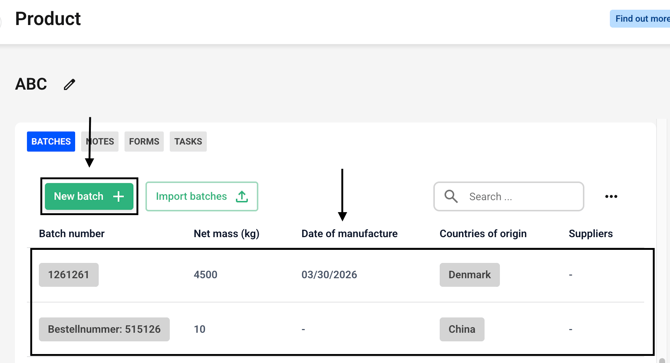
Create a new batch or select an existing batch.
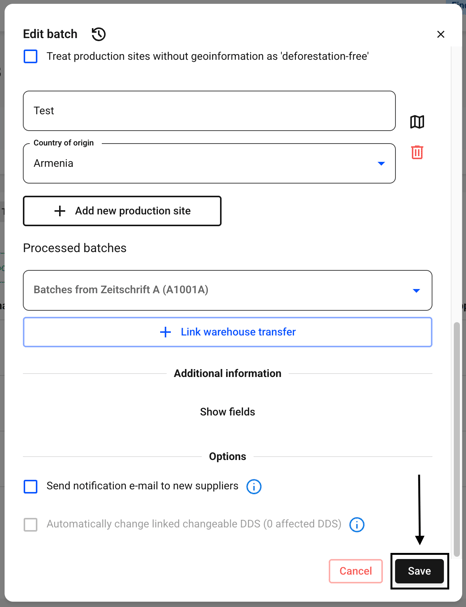
Now fill in all the information and then click Save.
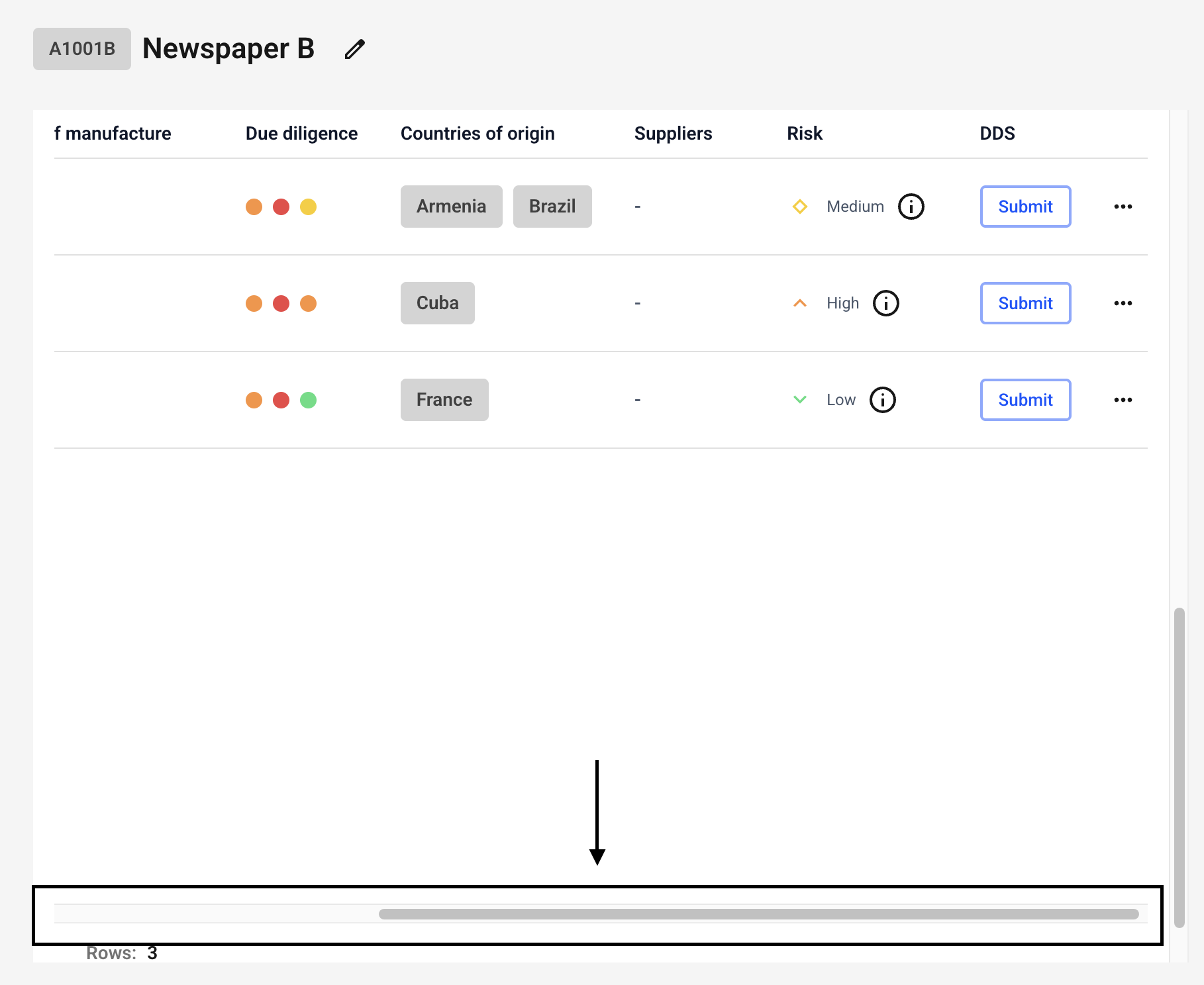
Once the batch has been created, you can scroll all the way to the right in the batch overview.
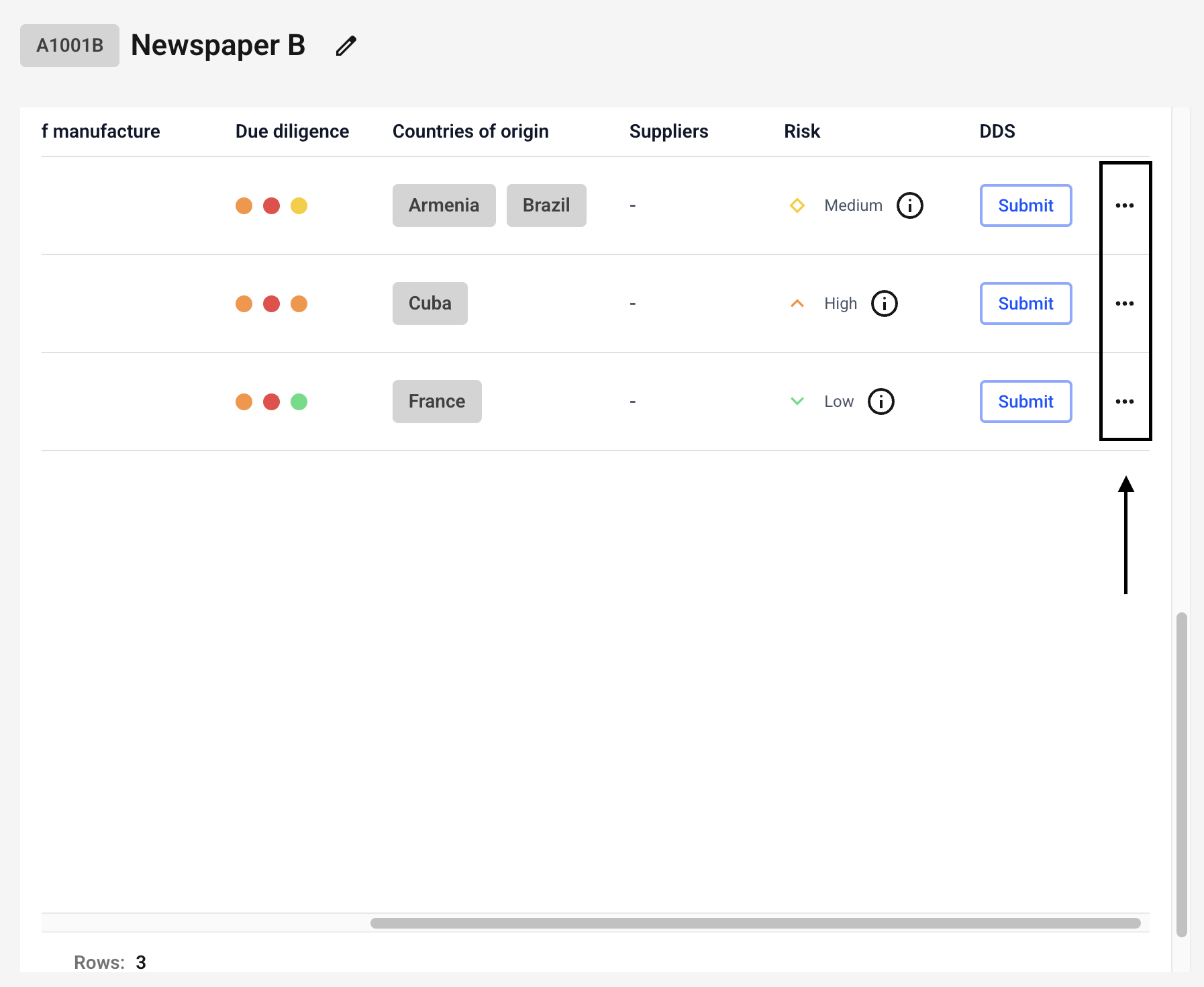
Click the three dots next to the batch of your choice.
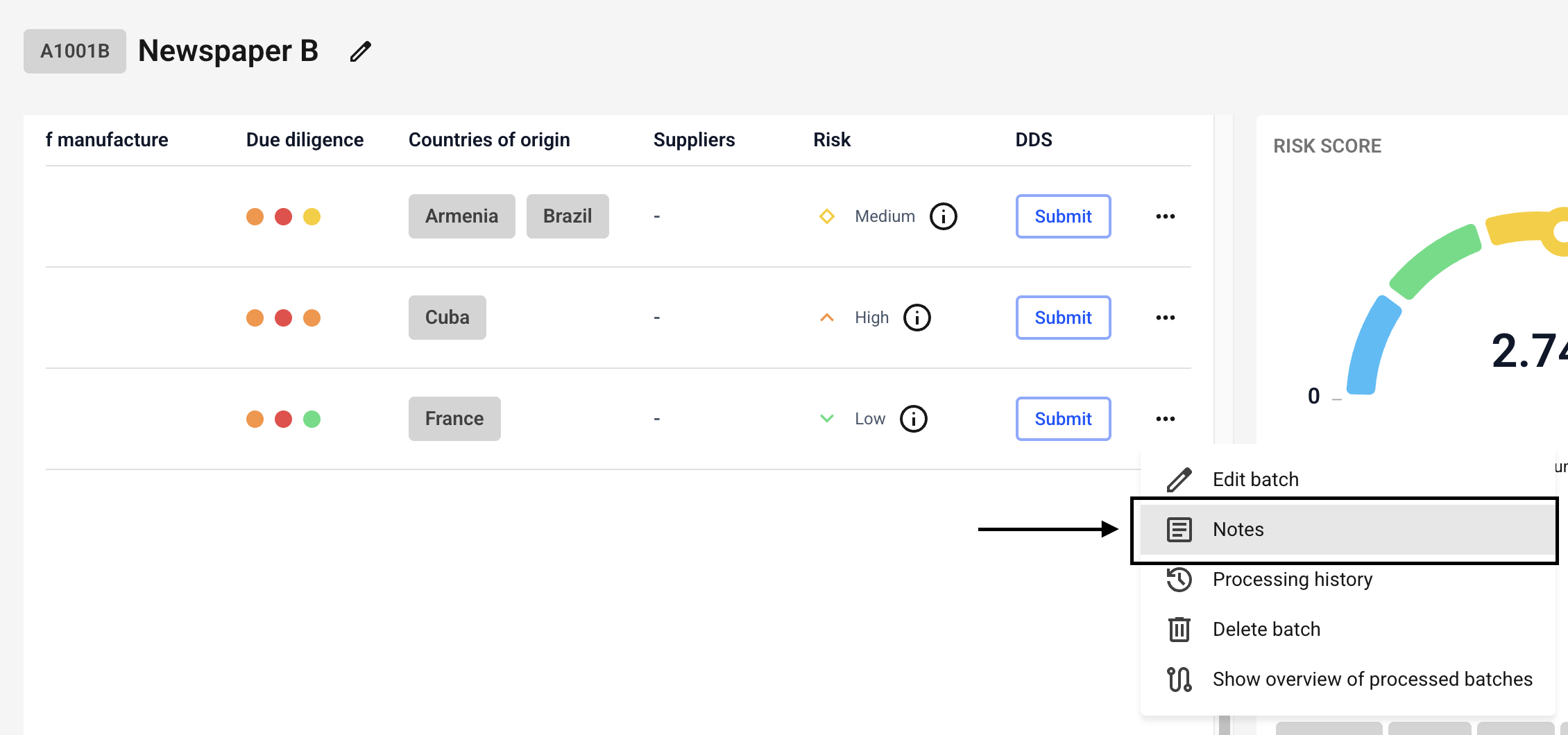
Click on Notes now.
Now enter the desired information and confirm by clicking Save.
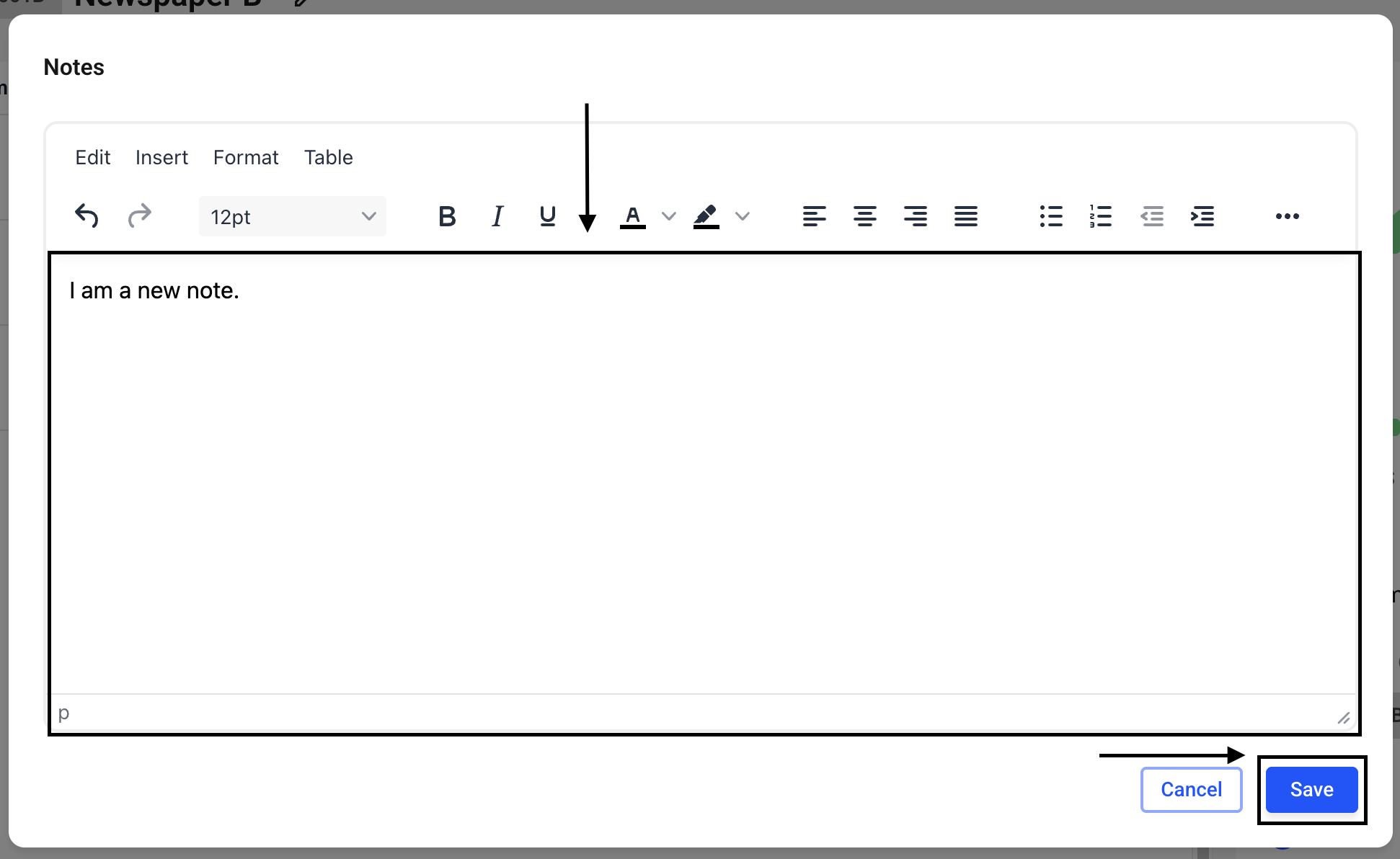
The note has been attached to the batch. The note is for internal use only. It will not be forwarded to the Traces Portal.