/Lawcode%20Logo%20(White).svg)
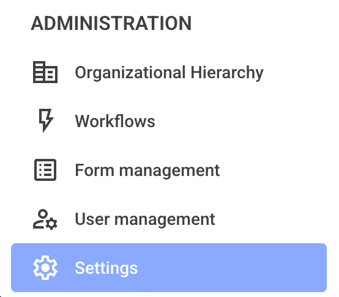
To edit your own template, first click on Settings in the administration area.
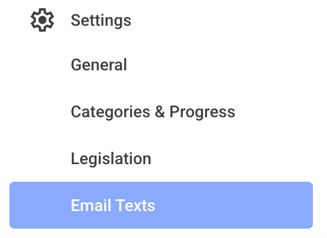
Now click on the Email Texts.
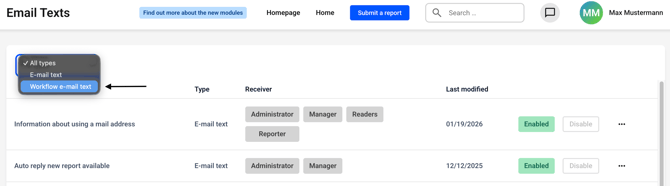
Now click on the All Types drop-down menu.
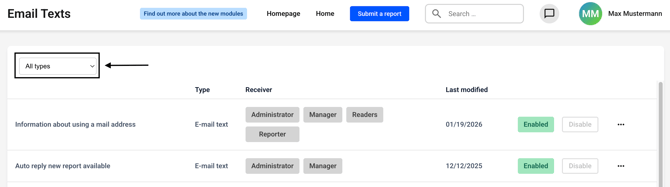
Select Workflow e-mail text from the list.
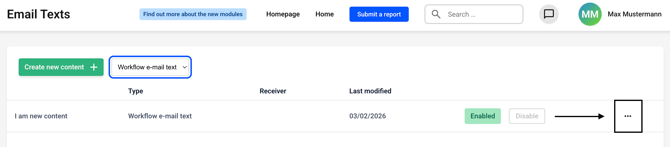
You will see an overview of all the templates you have created. Click on the three dots on the right-hand side of the template you want to edit.
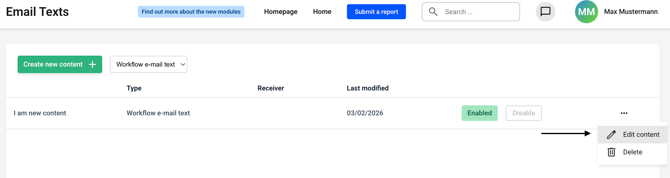
Click Edit content.
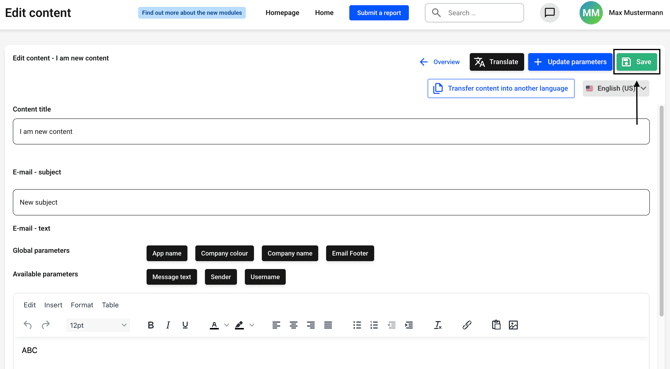
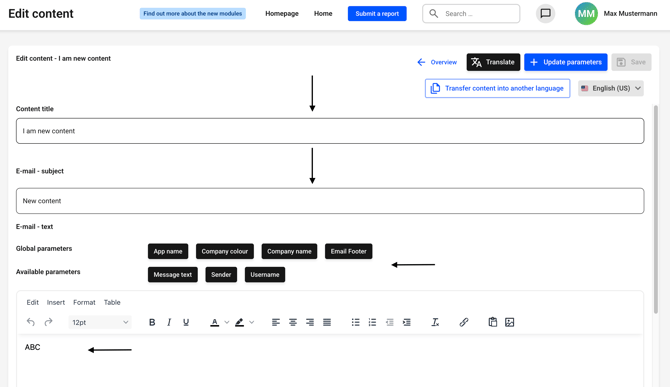
You have various options for editing:
- You can change the title, which is only visible to you internally
- You can change the email subject line, which will then be displayed when the email is sent
- You can customize the content of the email according to your own preferences. In addition, global and available parameters are available, allowing you to set quick commands for the message at the touch of a button
- You can translate the content of the email
- You can transfer the content of the email into other languages so that the content always looks identical, regardless of which language is selected
- You can also update the parameters. This option allows you to add additional available parameters to the email template
Once you have made the desired changes, click Save.