/Lawcode%20Logo%20(White).svg)
There are two different ways to activate or deactivate the scroll containers in the report layout.
On the one hand, you can permanently deactivate this function in the system settings; on the other hand, you can activate and deactivate the function individually within the reports.
Method 1: Permanent activation/deactivation in the system settings
On the one hand, you can permanently deactivate this function in the system settings; on the other hand, you can activate and deactivate the function individually within the reports.
Method 1: Permanent activation/deactivation in the system settings
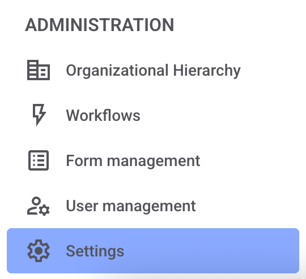
Click Settings in the administration area.
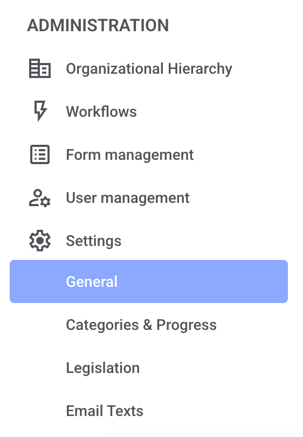
Now click on General.
Scroll down until you reach the Report layout.
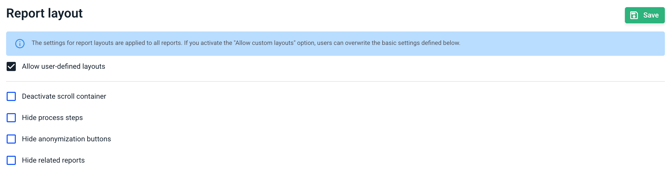
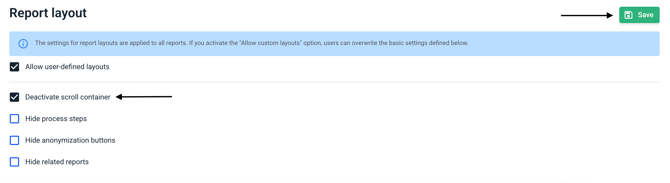
To permanently disable it, check the box next to Disable scroll container. The scroll container is enabled by default. Then click Save to apply the changes.
Method 2: Activating/deactivating within the report
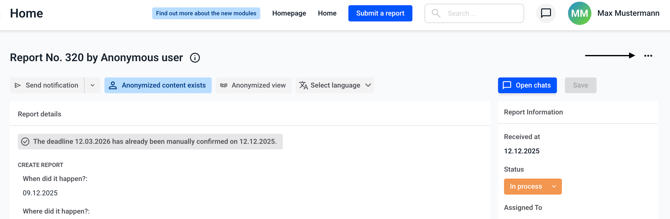
Open a report and click on the three dots in the top right corner.
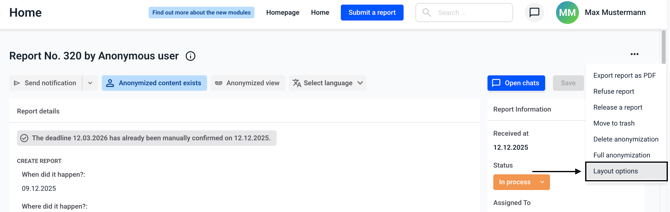
Select the layout options from the menu.
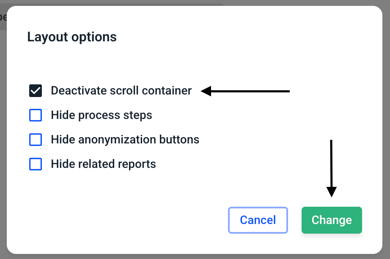
If you want to deactivate the scroll container, check the box next to deactivate scroll container. If you want to activate the scroll container, uncheck the box. Then confirm your selection by clicking Change.
Please note that the layout options are only displayed if they are activated in the system settings.