/Lawcode%20Logo%20(White).svg)
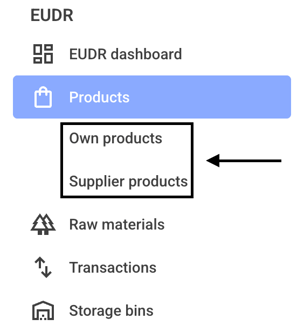
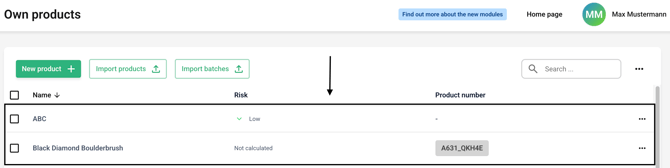
Now click on the line of the desired product.
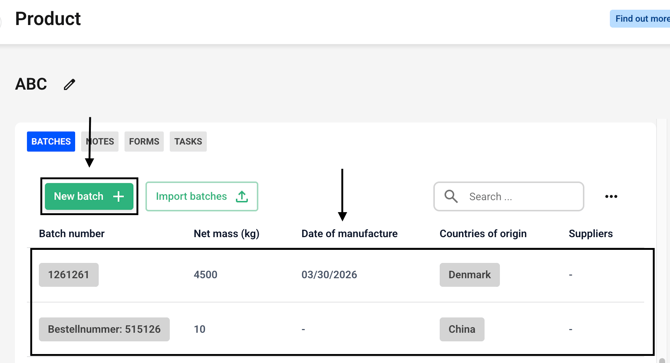
Create a new batch or select an existing batch.
Click on the Add production site button or choose an existing production site.

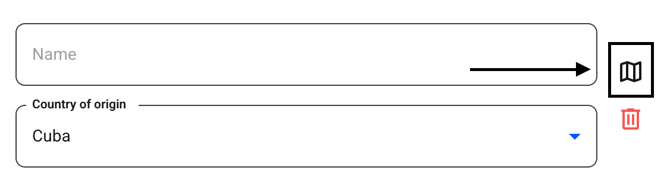
Now click on the small map symbol.
Click the three dots next to a new or existing area.
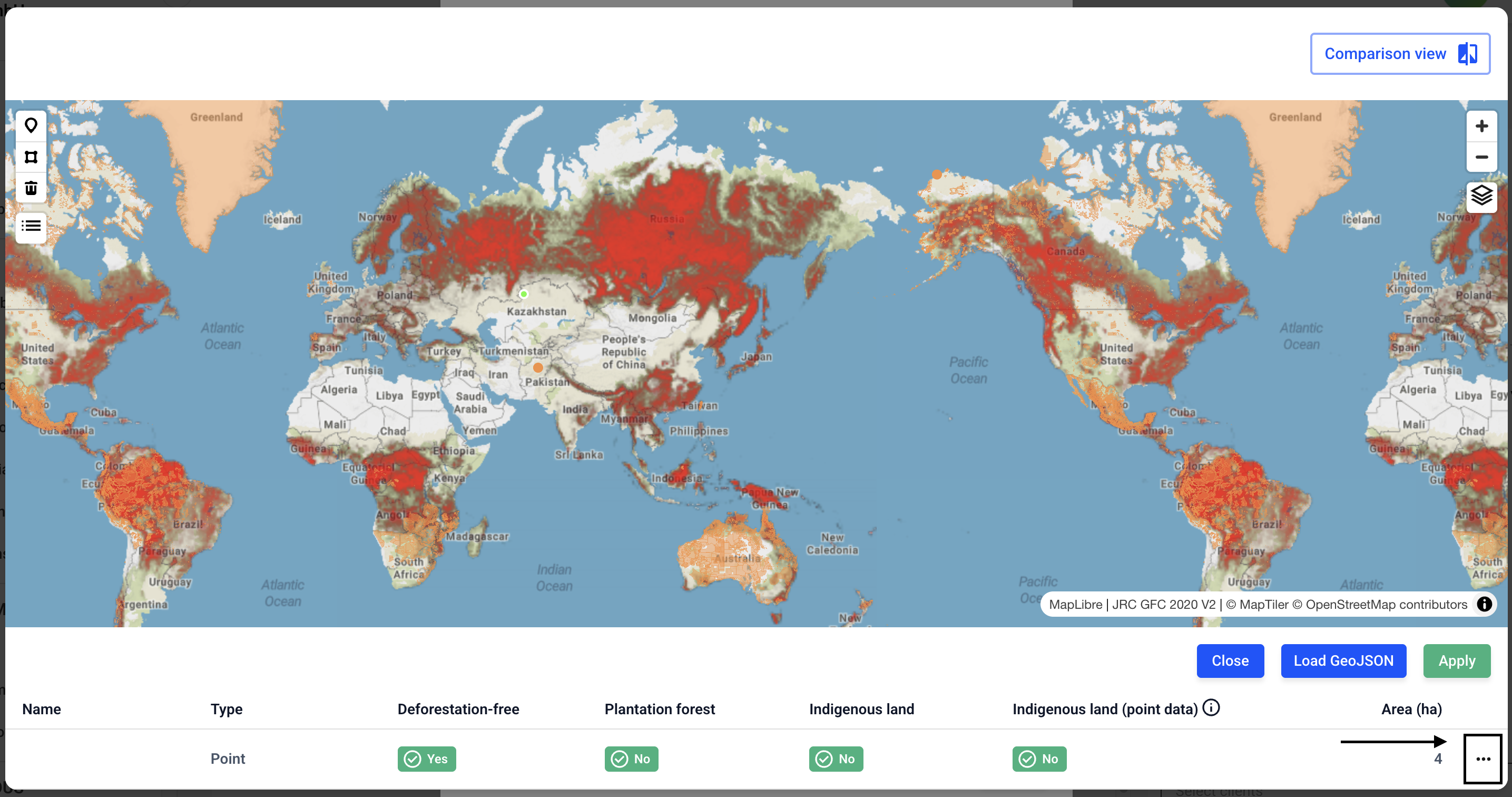
Click Edit now.
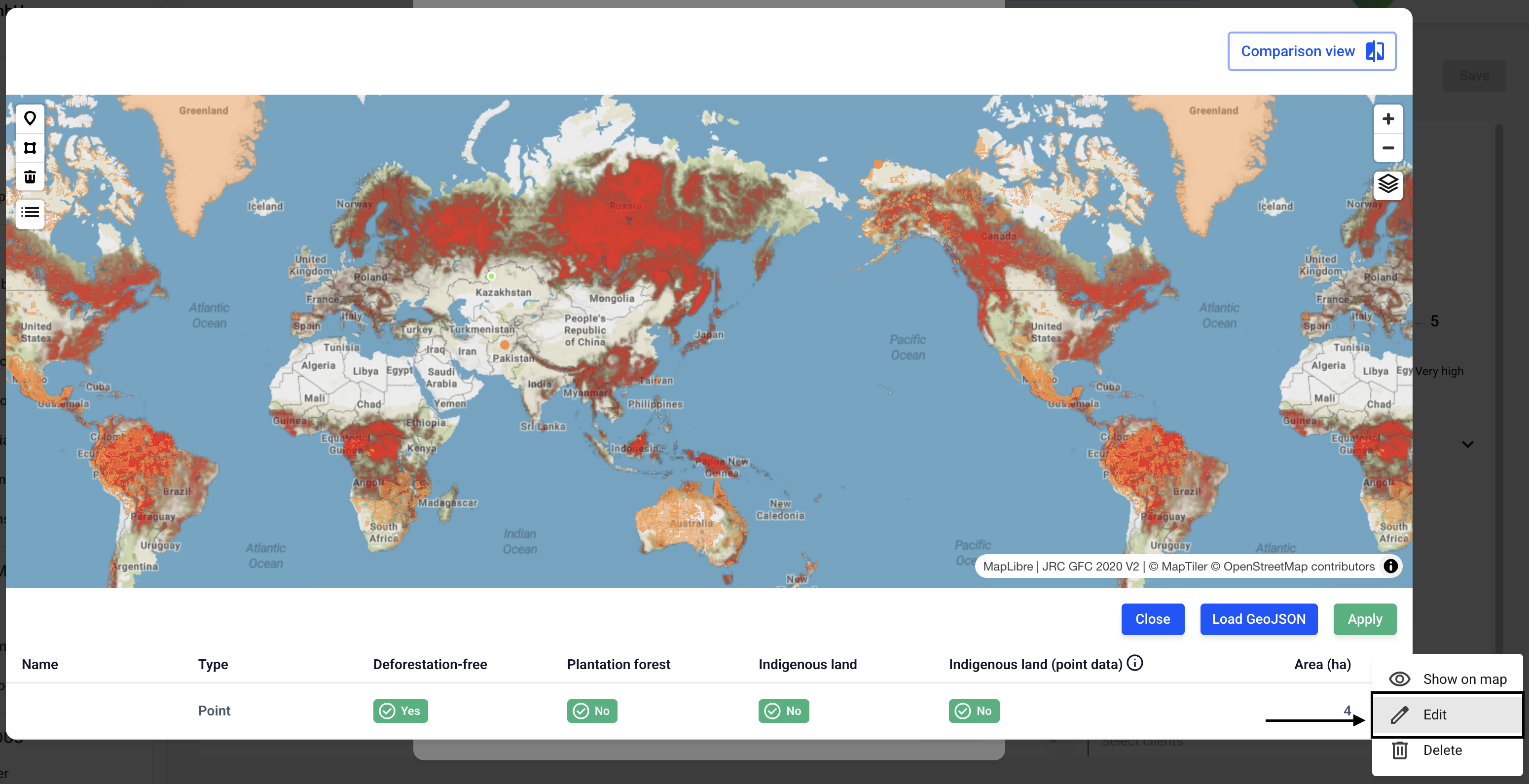
A new menu will open.
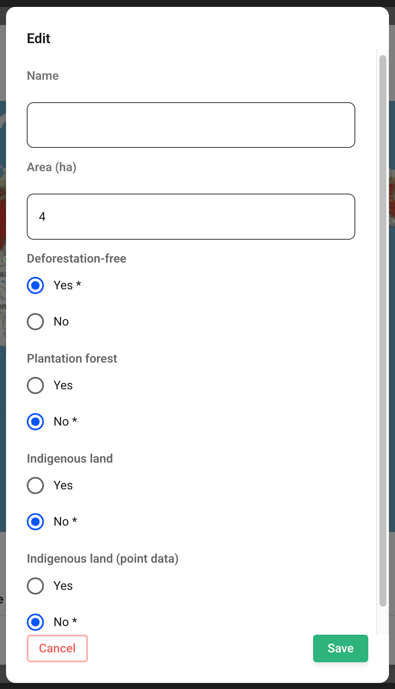
The following options are available to you:
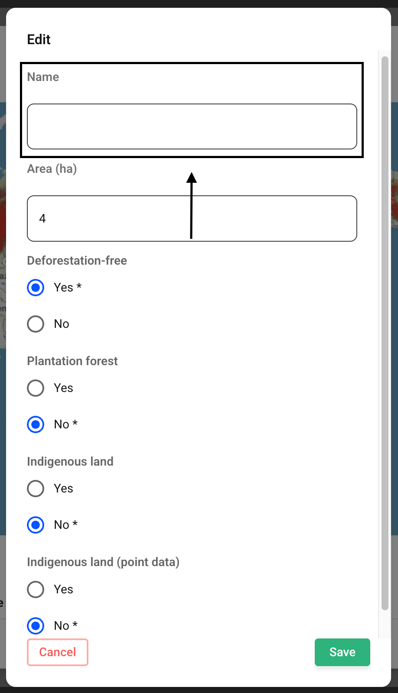
- On the Name tab, you can enter a custom name for the selected area.
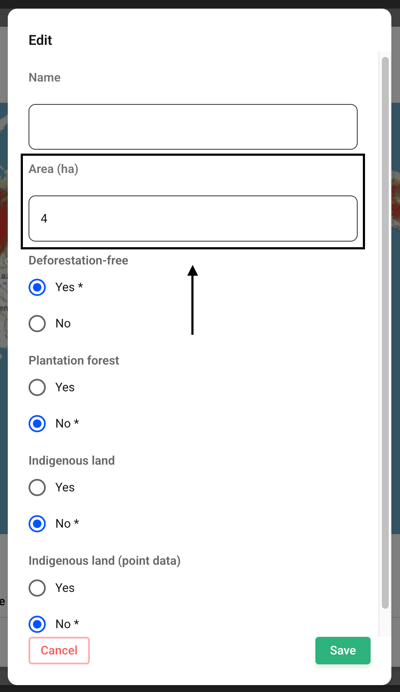
- For the area (ha), you can manually increase or decrease the size of the area by entering a number.
You can manually adjust the Deforestation-free status by checking the Yes/No button. The option determined by the geocoordinates is always automatically selected. You can tell this by the asterisk next to it.
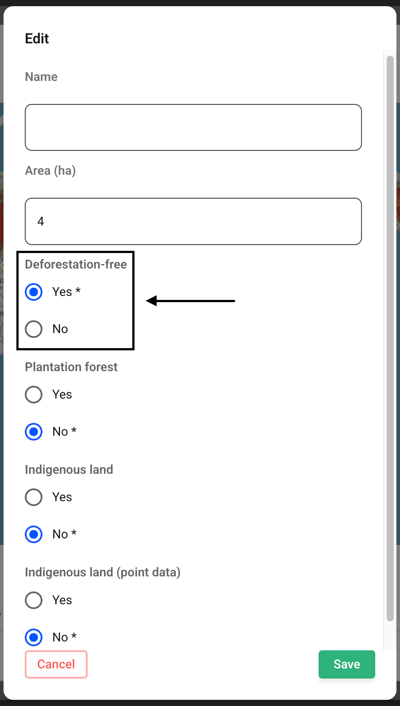
This way, you can also:
- The plantation forest
- The indigenous land
- The indigenous land (point data)
mark them as Yes or No.
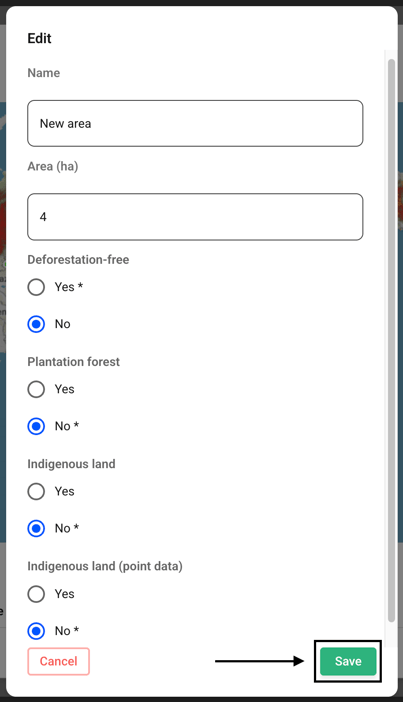
At the end, confirm the changes by clicking Save.
The changes will be applied. You can view the changes immediately. Modified filter settings are marked with an asterisk.
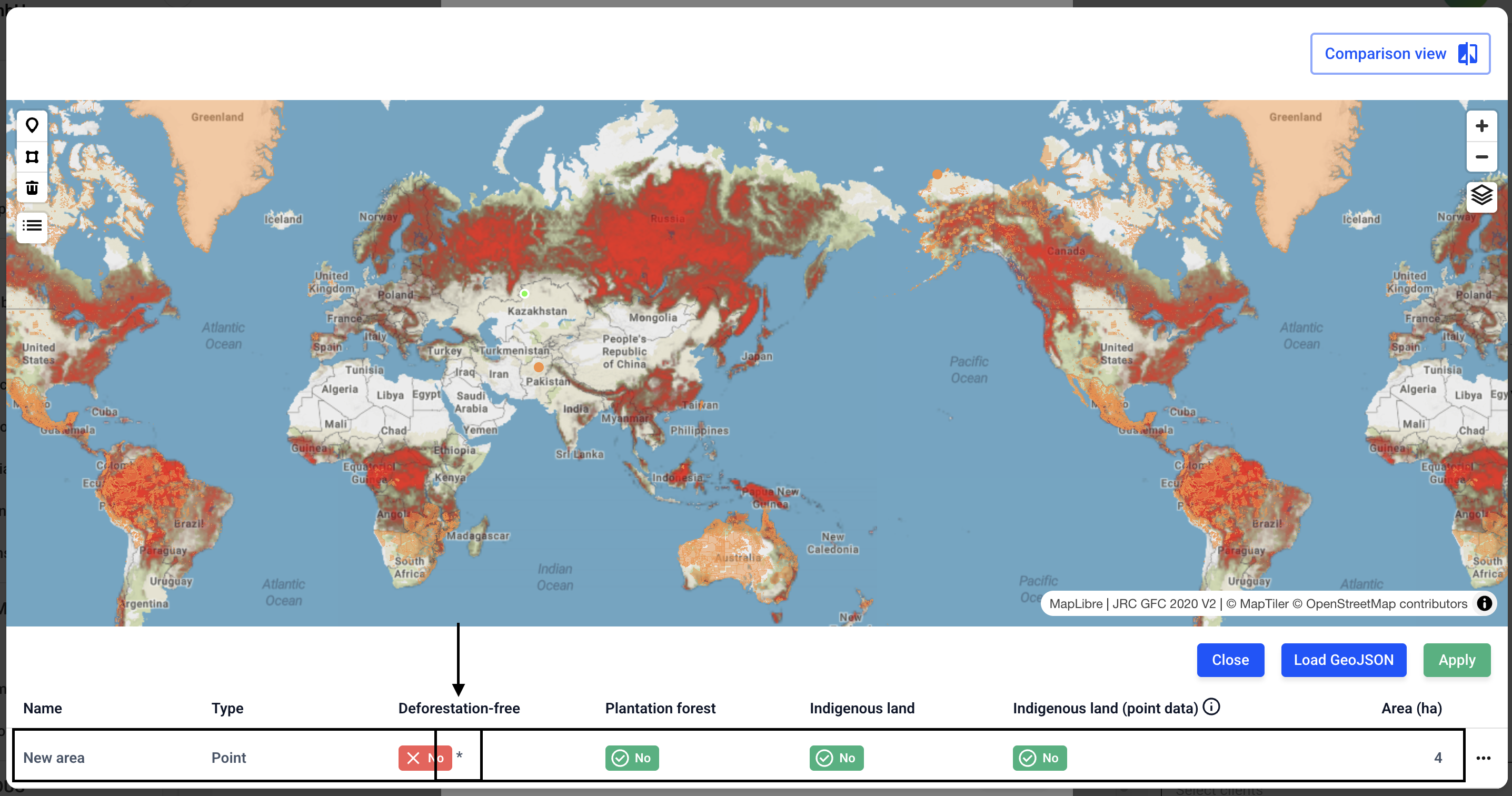
Now click Apply and save the batch.