/Lawcode%20Logo%20(White).svg)
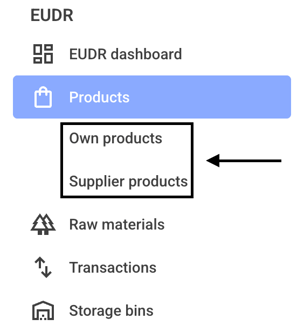
First click on Products and then on Own products or Supplier products.
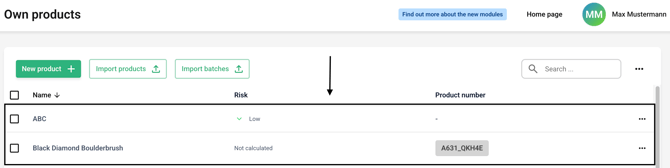
Now click on the line of the desired product.
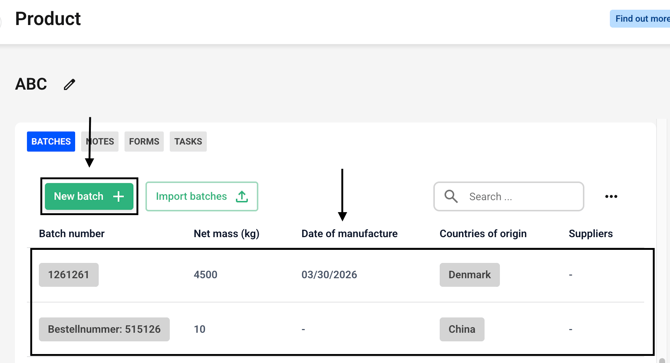
Create a new batch or select an existing batch.
Click on the Add production site button or choose an existing production site.

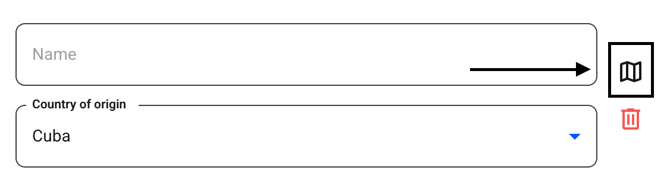
Now click on the small map symbol.
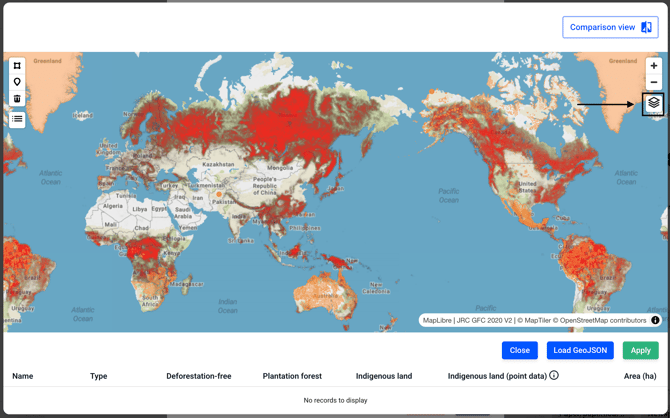
You can use the satellite historical quarterly view in two different ways. You can either use the view on its own, or you can use the filter for the comparison view.
To use it on its own, click the icon shown in the upper-right corner.
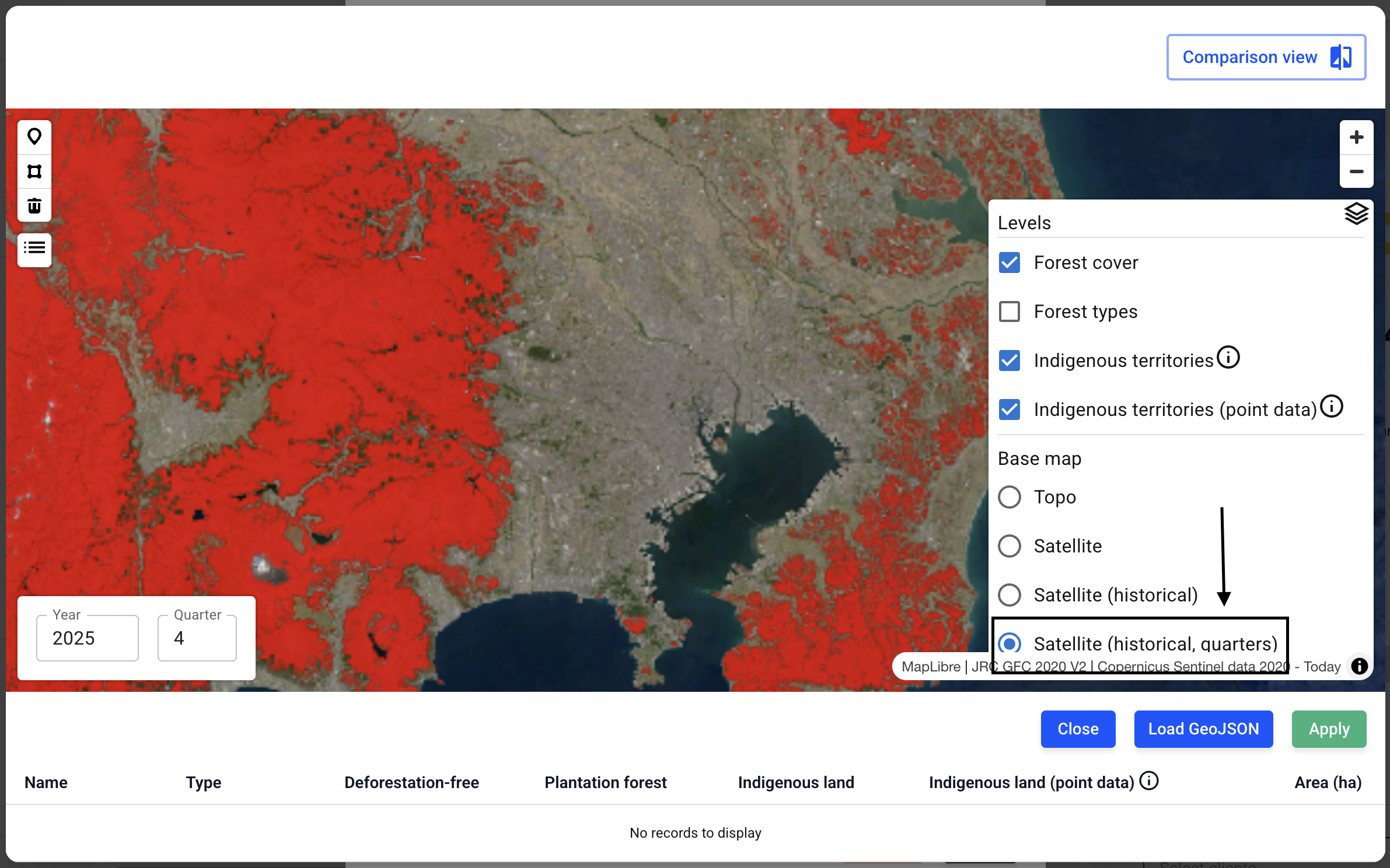
Now check the box next to Satellite (historical, quarters).
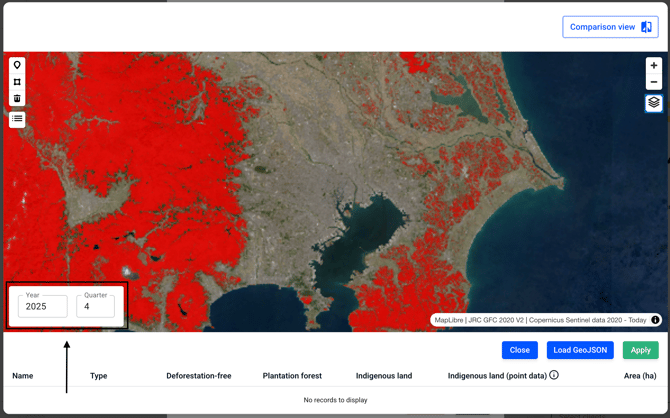
You can now use this view. To do so, enter the desired year and quarter in the bottom-left corner.
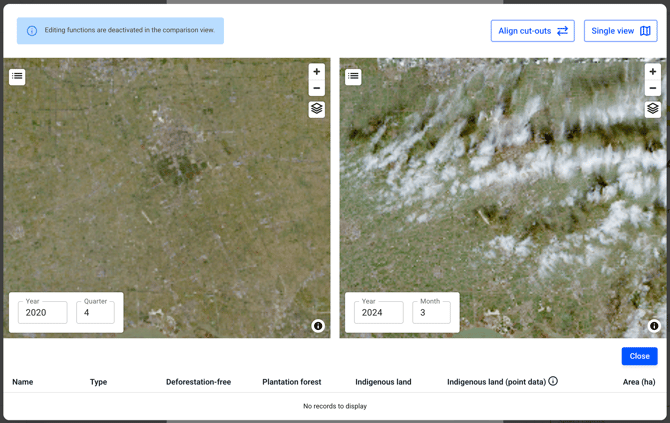
Another way to use this feature is through the comparison view. This is particularly useful when the historical satellite view shows too many clouds on the map for a given time period. To do this, first click on the comparison view.
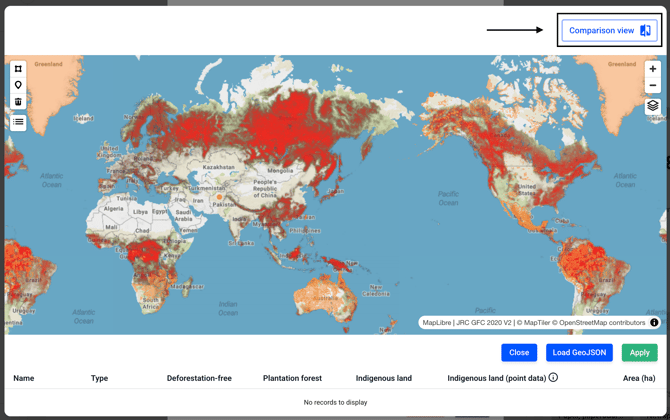
First, set the map (to a single page) to the location of your choice.
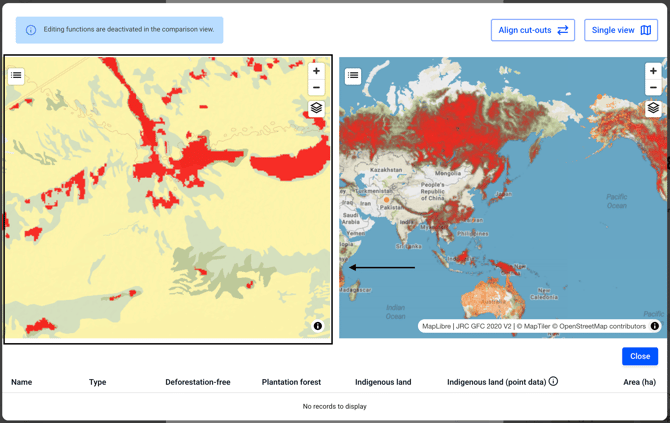
Click Align Cut-outs now to display the map data identically on both sides.
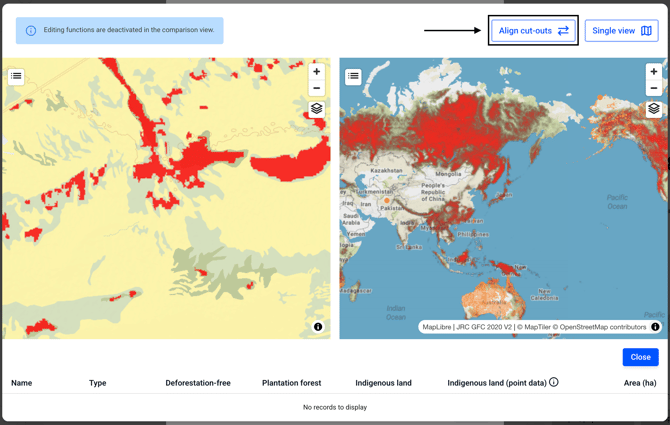
The map data is now identical.
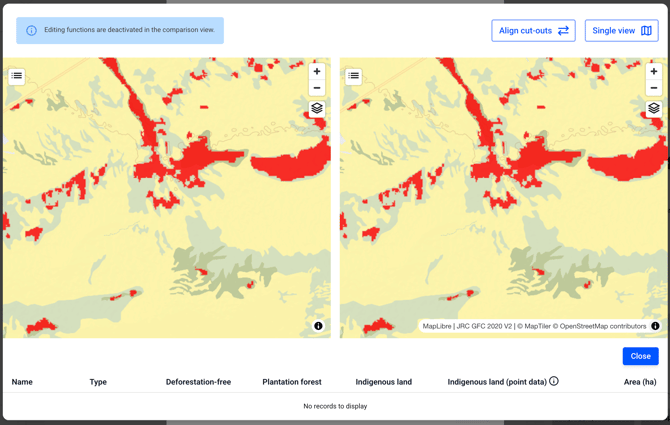
Click on the icon below on the left.
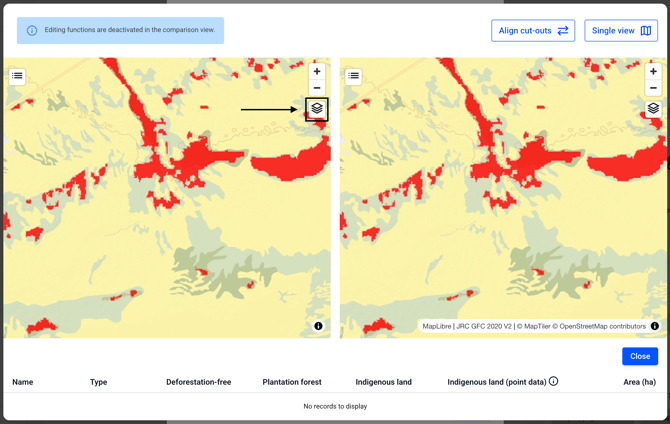
Now click the Satellite (historical, quarters) checkbox.
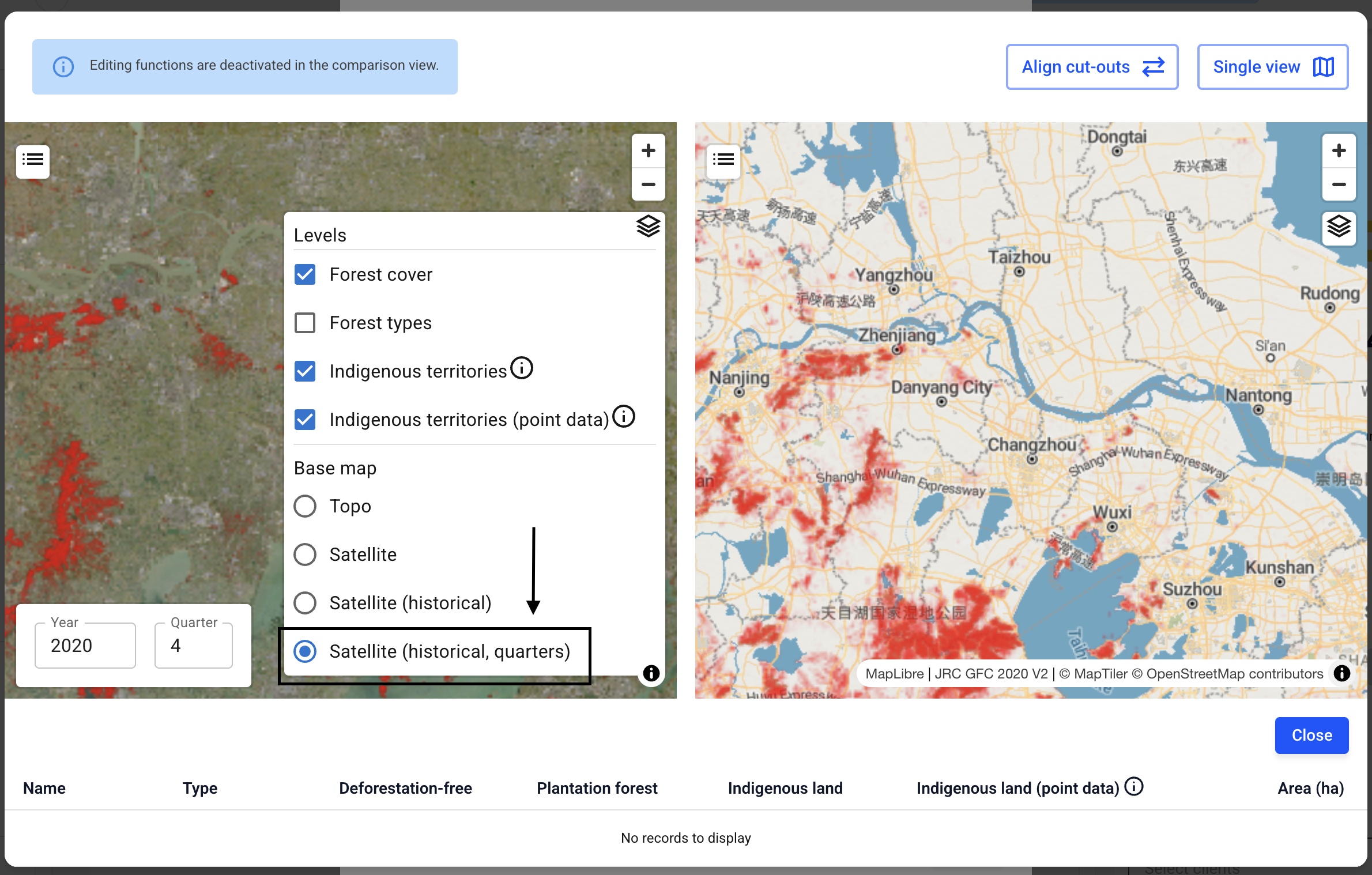
As explained earlier, set the view to one year and one quarter. If you now enable the (Historical) satellite view on the right-hand side, you can easily compare the two sections.
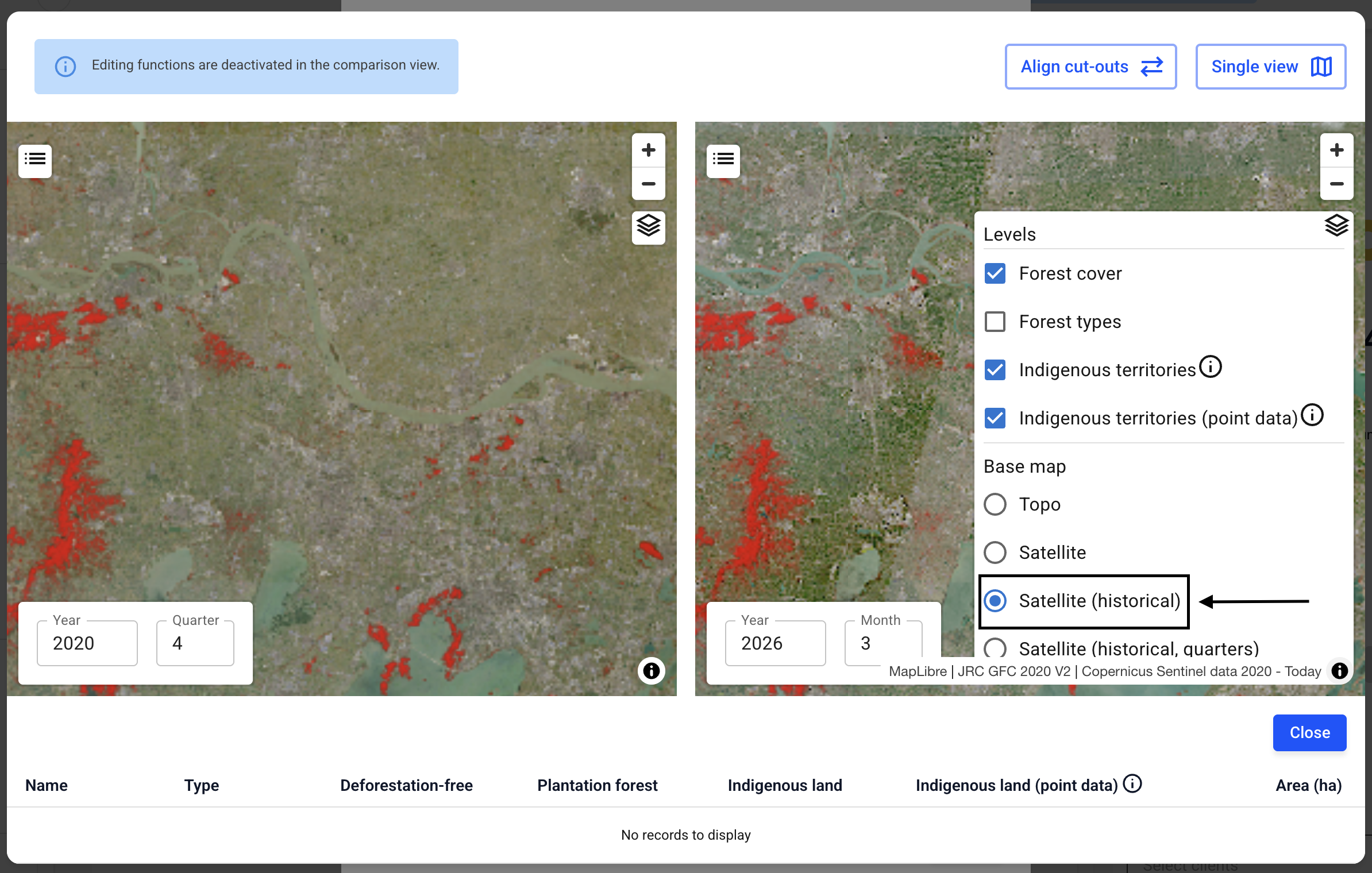
On the right-hand side, select your desired year and month. You can often see a difference in cloud cover.