/Lawcode%20Logo%20(White).svg)
Within the when condition, start with the following options.
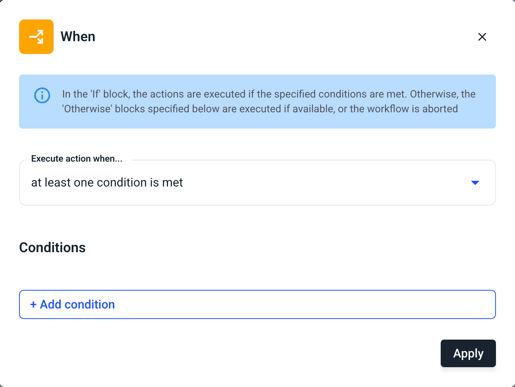
First you must determine when the action of the when condition is executed.
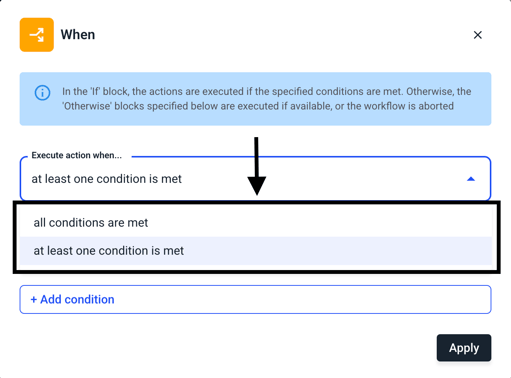
- The “all conditions are met” function links the various conditions using an AND.
- If you opt for the “at least one conditions met” variant, the conditions are linked using an OR.
Decide on a variant and continue with the condition. Now click on Add condition.
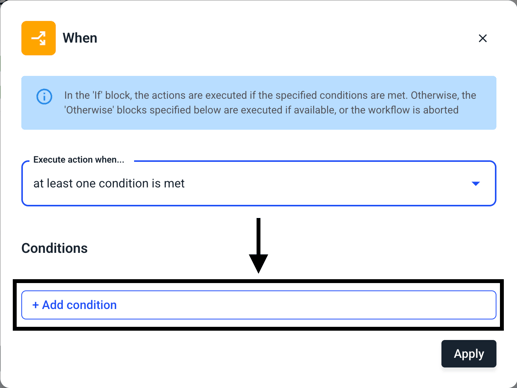
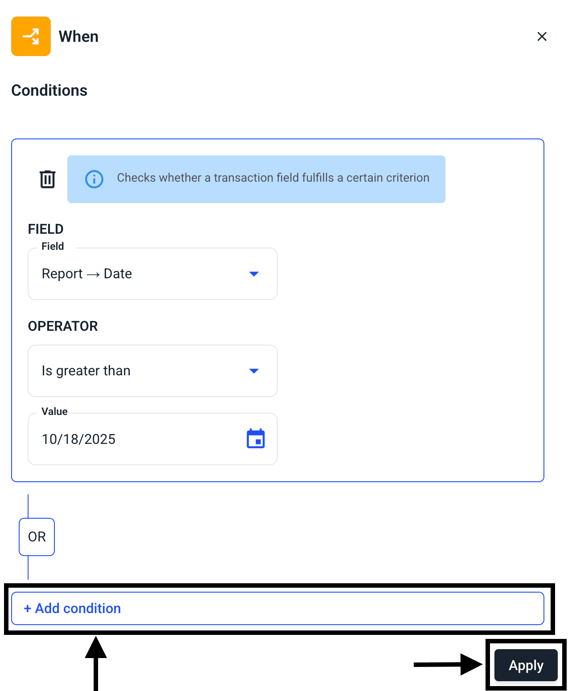
The conditions dialog opens. Click on the drop-down menu of the field and select a parameter of your choice.
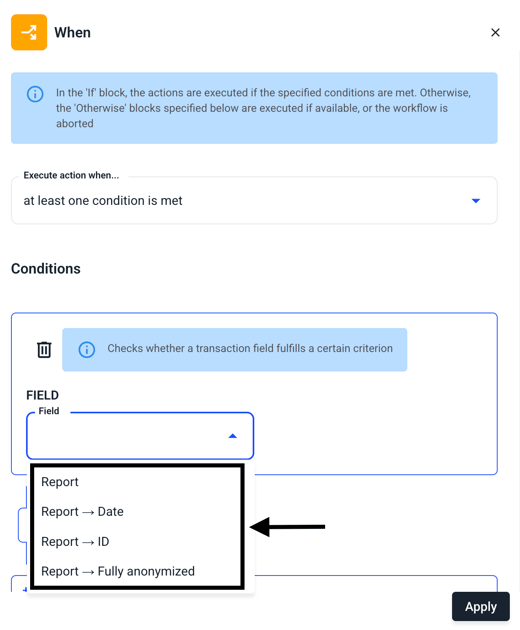
Each of the three selected criteria causes an operator to appear.
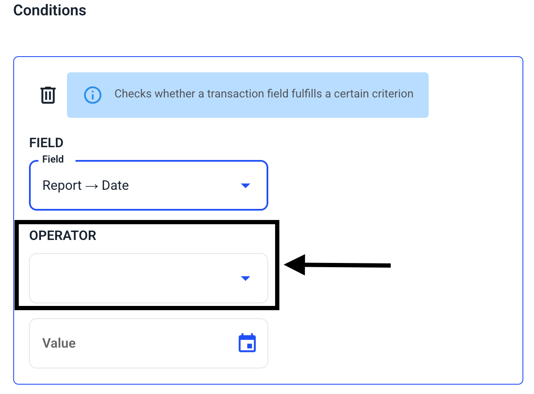
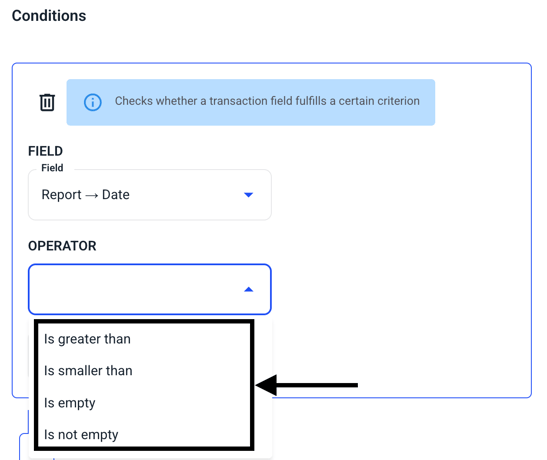
The operator further restricts the condition. In this example, you can set whether the previously selected date should be greater than or less than... should be.
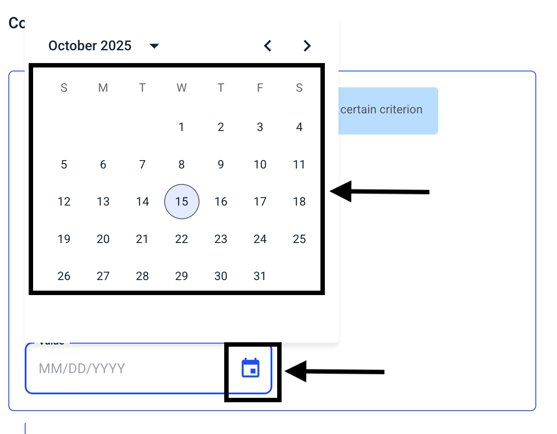
Then determine the value using the calendar function.
Once you have made the change, you can either add another condition or save the previous change.